
Tasks and reminders
Keep every call you promised: add a task, tick it off or put it off, and be reminded on your phone when it is due.
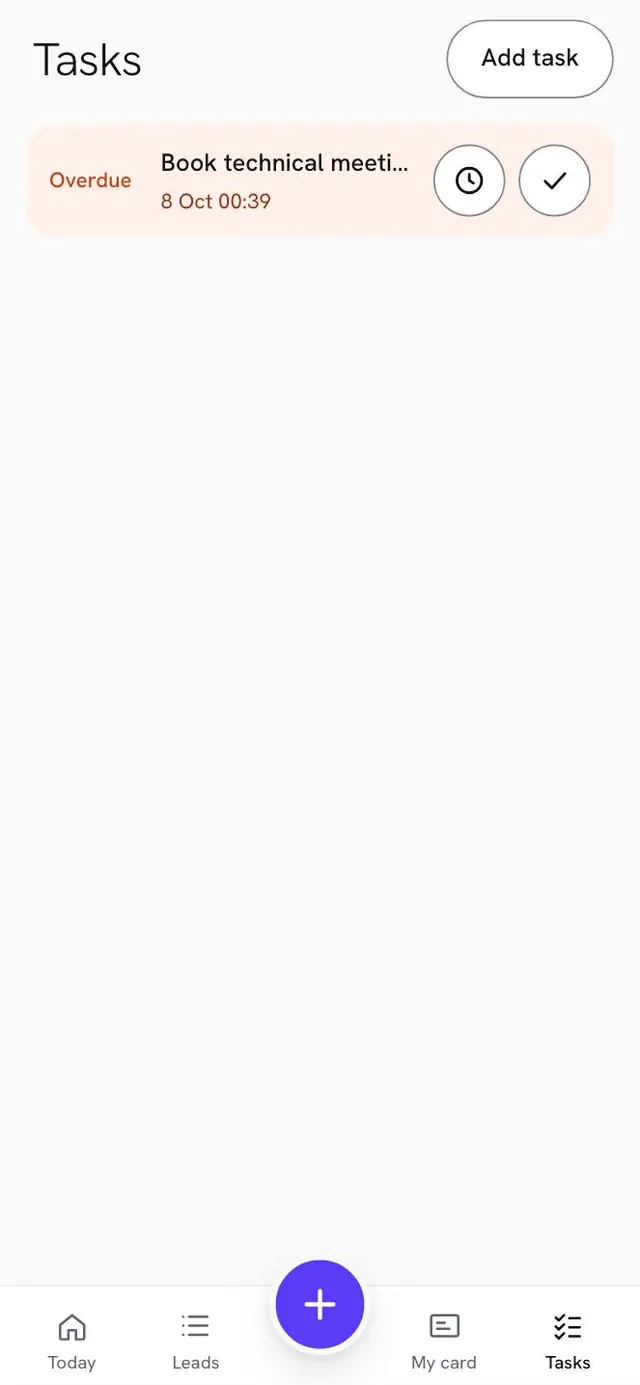
Tasks in the bottom bar is your to-do list. In a personal space it is called Follow-ups.
Where tasks come from
- The Next action on a lead.
- The next step when you end a visit.
- Add task, for anything else.
- Your manager. The task shows From and their name, and you are told by email, and on your phone if reminders are on.
Add a task
- Tap +, then Add task. Or tap Add task on the Tasks screen.
- Under What needs doing?, type it.
- Under Next step, choose the kind: Call, Email, WhatsApp, Send catalogue, Send quotation, Technical meeting, Site visit or Other.
- Under Due, set the day and time if there is one.
- Tap Add task.
Managers also choose who it is For. See My team.
Work through them
| Do this | What happens |
|---|---|
| Tap the tick | It is done, and leaves the list |
| Tap the clock | Do it later: In an hour, Tomorrow morning or Next week |
| Tap the row | If the task is about a lead, the lead opens |
Overdue tasks are marked Overdue. All of this works with no signal.
If you have site visits on your list, Planned visits appears at the top. See Customer visits.
If it is not done yet
- On the task, tap Not done yet.
- Under Remark, say where it stands.
- Under New date, choose when you will come back to it. The app suggests tomorrow at 10:00.
- Tap Save.
The task and its reminder move to the new date, and your remark shows on the task. Your manager sees it too. If the task is about a lead, the remark also goes in the lead’s history. Earlier remarks are listed when you open Not done yet again. It works with no signal.
Reminders on your phone
- Open Profile and find Reminders on this phone.
- Turn on Show reminders here, and allow notifications when the phone asks.
- Tap Send a test. It arrives within a minute.
You are then reminded when a task is due, when leads are waiting for a follow-up, and when leads or tasks are handed to you. The same reminders still come by email.
On an iPhone, add the app to your Home Screen first, and open it from there. See Put selXP on your phone.
Your phones
Phones with reminders on lists every phone and computer that gets your reminders, with the day it was added and the last reminder it got. The one you are using is marked This phone. Tap Remove on any you no longer use, such as an old phone.
If no reminders arrive
| What you see | What to do |
|---|---|
| “add it to your Home Screen first” | Do that, open the app from the icon, and come back |
| “Notifications are blocked” | Allow them in your phone’s settings, then come back |
| “This browser cannot show reminders” | They still come by email |
| The toggle is on but nothing comes | Tap Send a test. Check your phone is not silencing notifications |
Your company can set quiet hours. Reminders that fall in them wait until they end.
Still stuck?
Ask your company's admin, or write to hello@lucidarc.ae. Say which screen you were on and what you expected to happen.