
Email signature and call background
Use your digital card in your email signature and as a background for video calls, both made for you on My card.
Both are further down My card, and use the card you have open.
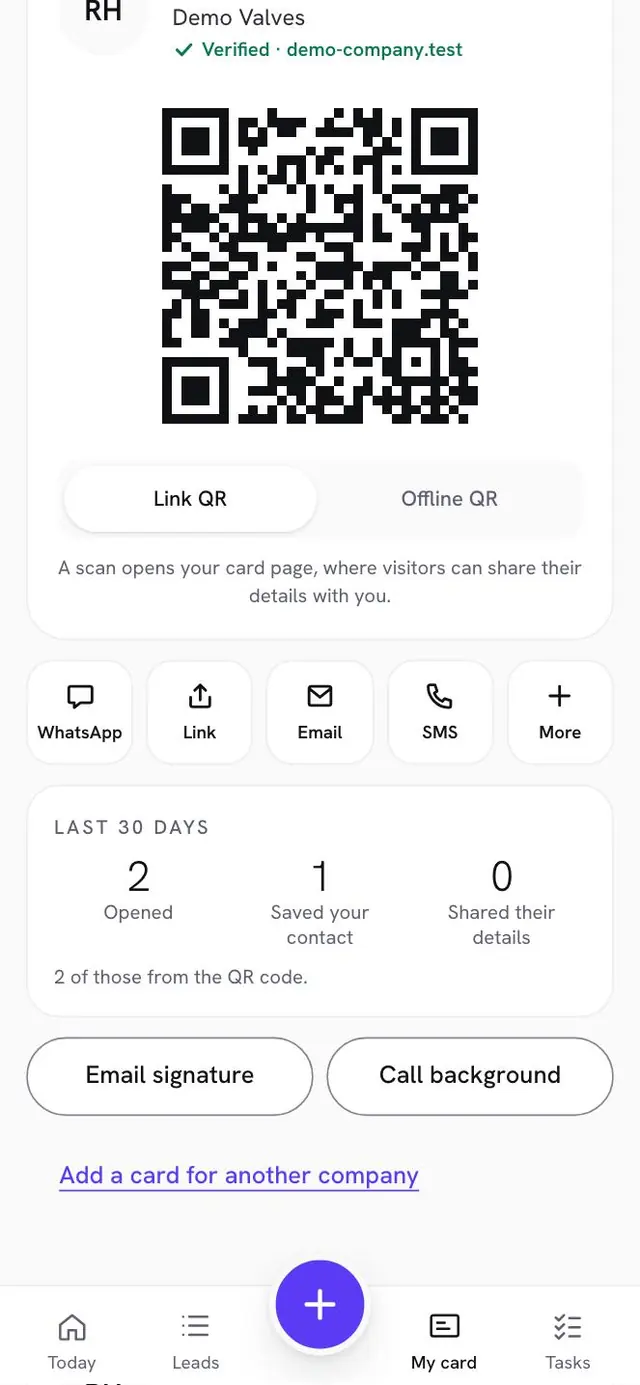
Email signature
- Open My card and tap Email signature. It is copied.
- Open your mail program’s signature settings.
- Paste it in and save.
It holds your details and a My digital card link. If you change your card, copy it again.
Call background
- Open My card and tap Call background.
- A picture with your details and a QR code is saved to your downloads as
call-background.png. - In your video call app, choose it as your background.
People on the call can scan the code to open your card.
Good to know
- With more than one card, choose the card first with the chips at the top.
- Some phones limit copying. If so, the signature’s text appears on screen for you to copy by hand.
Still stuck?
Ask your company's admin, or write to hello@lucidarc.ae. Say which screen you were on and what you expected to happen.