
The lead form, field by field
What each part of Review lead is for: contact details, event, interests, role, timeline, temperature, notes and the next action.
The same form, Review lead, opens after a scan, a code or a quick lead. Thirty seconds here turns a card into a lead your manager can act on. The top of the screen shows the event, your company and the time, with the temperature and score as they stand.
Your company decides which questions appear, so yours may differ.
Who they are
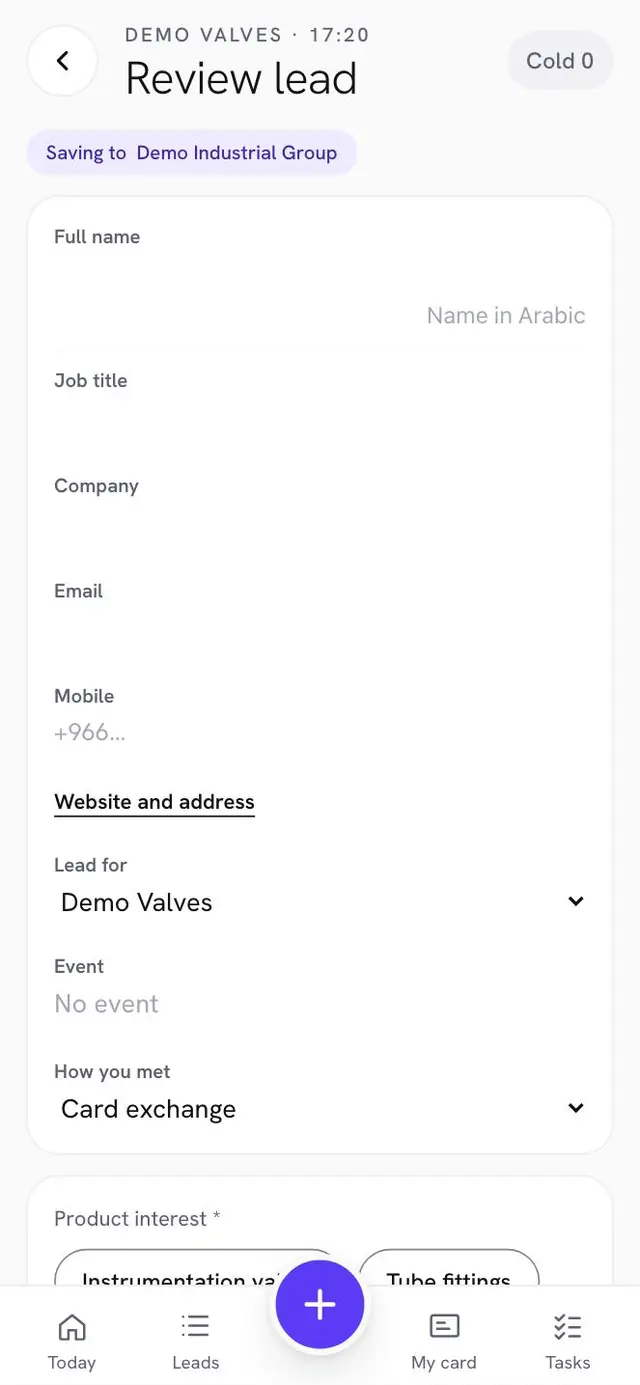
| Field | What to put |
|---|---|
| Full name | Needed. Under it, the name in Arabic if you have it |
| Job title, Company, Email, Mobile | Read from the card when there is one. Always yours to correct. Give the mobile with its country code |
| Website and address | Tap to open these two fields |
| Lead for | Which of your companies this lead is for. It starts on your own. Changing it changes the products offered. Shown if your group has companies set up |
| Event | Where you met. Choose No event if it was not at one |
| How you met | Shown with No event: Card exchange, Site visit, Client meeting, Daily sales visit, Referral or Other |
Saving to at the top appears if you have more than one space, and says where this lead goes.
What they want
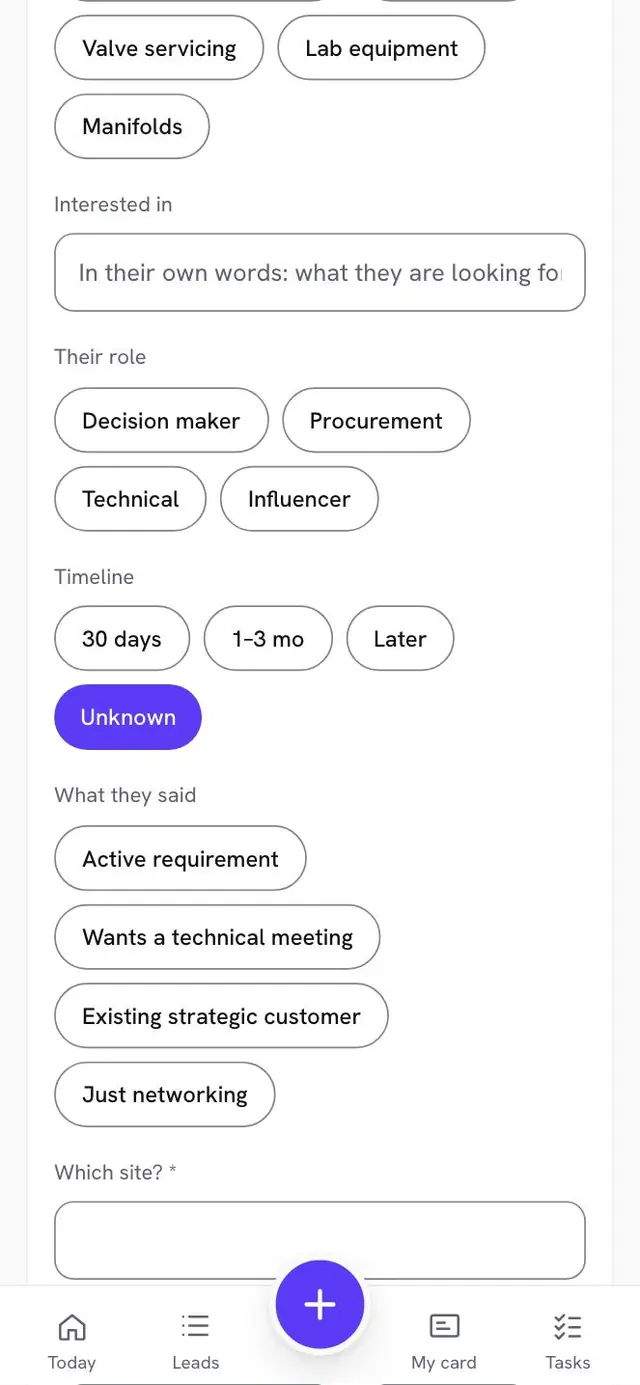
| Part | What to put |
|---|---|
| Product interest | Tap the products they asked about. The catalogues for these go with your follow-up |
| Interested in | In your own words. For example “2-inch gate valves for a shutdown in March” |
| Their role | Decision maker, Procurement, Technical or Influencer. You can tap more than one |
| Timeline | 30 days, 1–3 mo, Later or Unknown |
| What they said | Active requirement, Wants a technical meeting, Existing strategic customer or Just networking |
Your company’s questions
These may be text, a number, yes or no, or a list of choices. Questions can differ by event and by how you met. Tap a chosen yes or no again to take the answer back.
A question marked with a * is required. If one is empty when you save, the form says Still needed and names it.
Temperature, value and notes
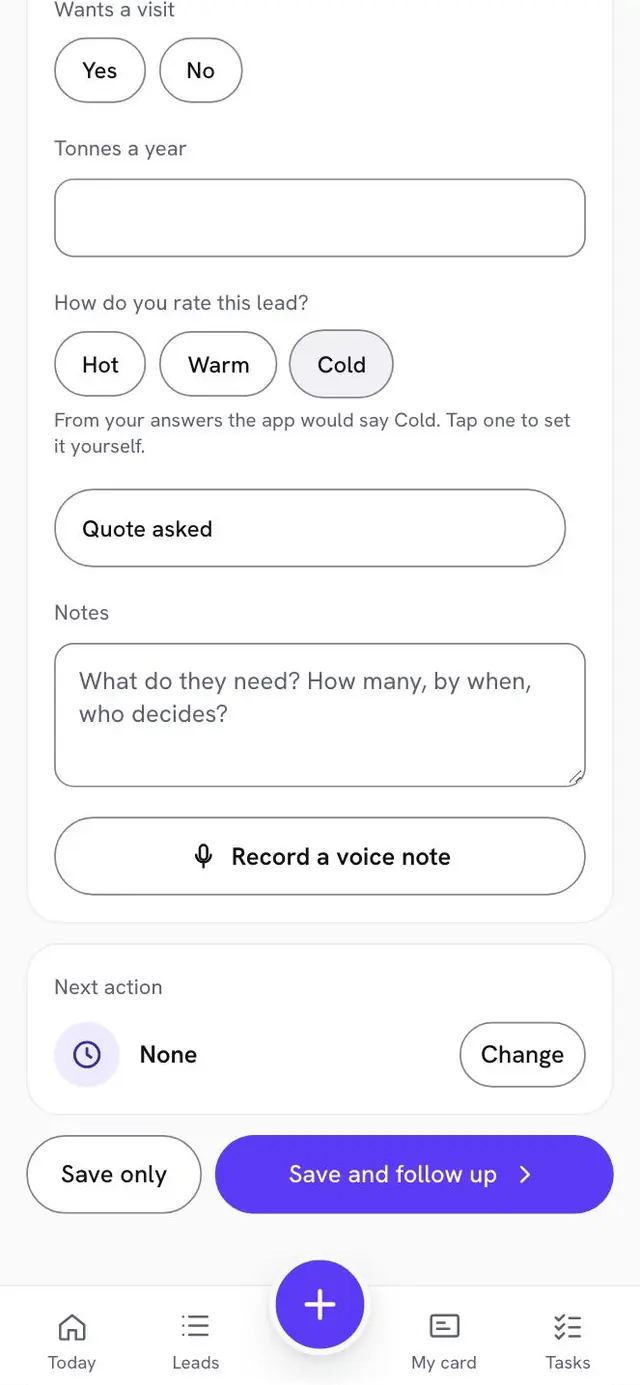
| Part | What to put |
|---|---|
| How do you rate this lead? | The app suggests Hot, Warm or Cold from your answers. Tap one to set it yourself. Use the app’s rating undoes that |
| Opportunity value | The size of the deal, in your company’s currency |
| Quote asked | Tap if they want a quotation |
| Notes | What they need. How many, by when, who decides |
| Record a voice note | See Voice notes |
| Draft the requirement with AI | Appears once you have written or said enough. You check it before it is used |
Next action
Tap Change, choose one, and set the day and time. It starts on tomorrow at 10:00.
The choices are Call, Email, WhatsApp, Send catalogue, Send quotation, Technical meeting, Site visit and Other. The action becomes a task with a reminder.
Save
| Button | What happens |
|---|---|
| Save and follow up | Saves, then opens the follow-up message |
| Save only | Saves, and opens the lead |
With no signal, both keep the lead on the phone and take you to Leads. Follow up once you are back online.
Notes on the form
| What you see | What it means |
|---|---|
| Met before | This person may already be a lead. See Someone you met before |
| Target account note | The company is on your target list. See Target accounts |
| Already in your CRM | Your CRM knows this person, and may say who looks after them. Save as usual: the lead is added to that record, not made twice |
| Check the email address and the phone number | One of them does not look right |
| “Capture for” a company | You are on an event or a shift with another of your spaces. See A personal space |
Still stuck?
Ask your company's admin, or write to hello@lucidarc.ae. Say which screen you were on and what you expected to happen.