
Your leads
Find a lead by name or company, filter by temperature or no follow-up, read what each line tells you, and export your list.
Leads in the bottom bar lists the leads you own, newest day first. Managers also see their people’s. See My team. In a personal space this is called People.
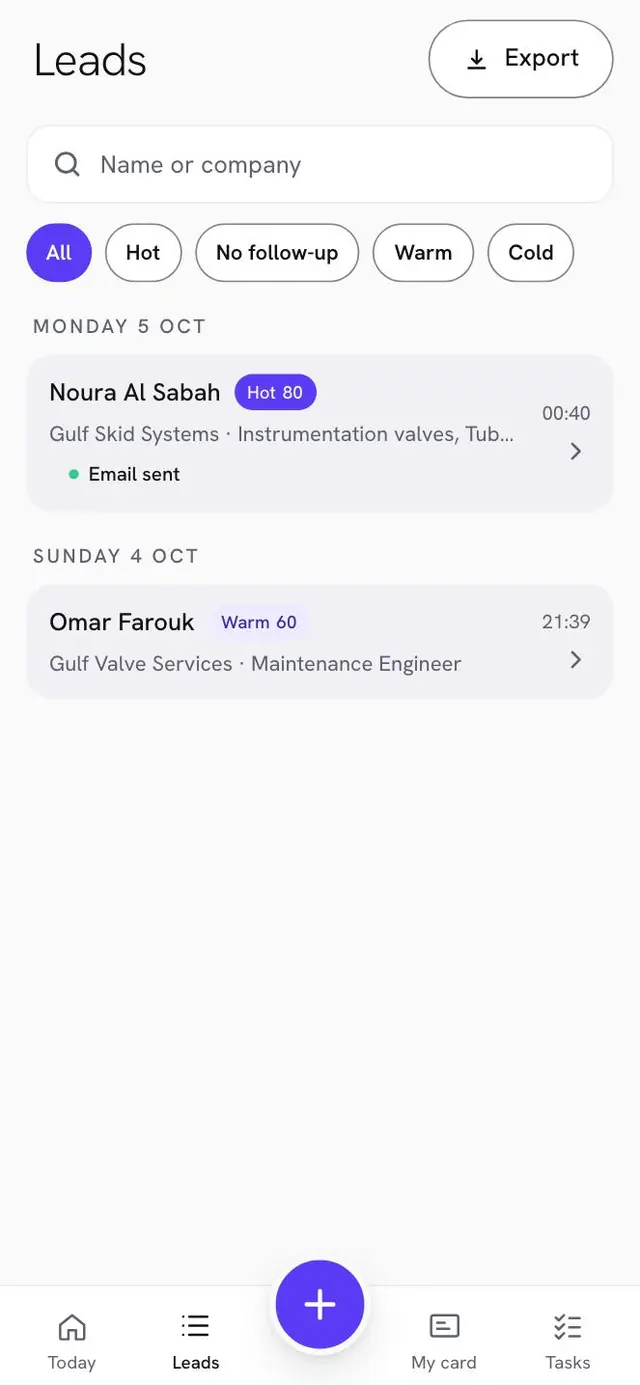
Find a lead
- Search: type part of a name or company.
- Filters: tap one. Search and a filter work together.
| Filter | Shows |
|---|---|
| All | Every lead you can see |
| Hot, Warm, Cold | Leads at that temperature |
| No follow-up | Leads with no call, email or message, or whose last email did not reach them |
Managers also get Mine.
What each line shows
Each line has the name, the temperature and score, the company, what they asked about, and the time captured. A line under that says where the follow-up stands.
| Label | What it means |
|---|---|
| Email sent | It has gone |
| Email delivered | It reached their mailbox |
| Email not sent | It failed. Try again |
| Email bounced | The address did not work. Check it under Edit details |
| Marked as spam | The person marked it as spam |
| WhatsApp sent | You opened the message in WhatsApp |
| Called | You logged a call |
| Shared their details | They sent you their details from your card, and you have not followed up yet |
Leads not sent yet
Leads saved with no signal sit at the top under Waiting to sync, marked Not synced. Once sent, they join the list. See Working with no signal.
Export your leads
Tap Export at the top. The leads you can see are saved to your device as a spreadsheet, named with today’s date. A rep gets their own leads. It needs a signal, and exports are logged.
Next
A lead’s page covers everything you can do with a lead.
Still stuck?
Ask your company's admin, or write to hello@lucidarc.ae. Say which screen you were on and what you expected to happen.