
Check in and out
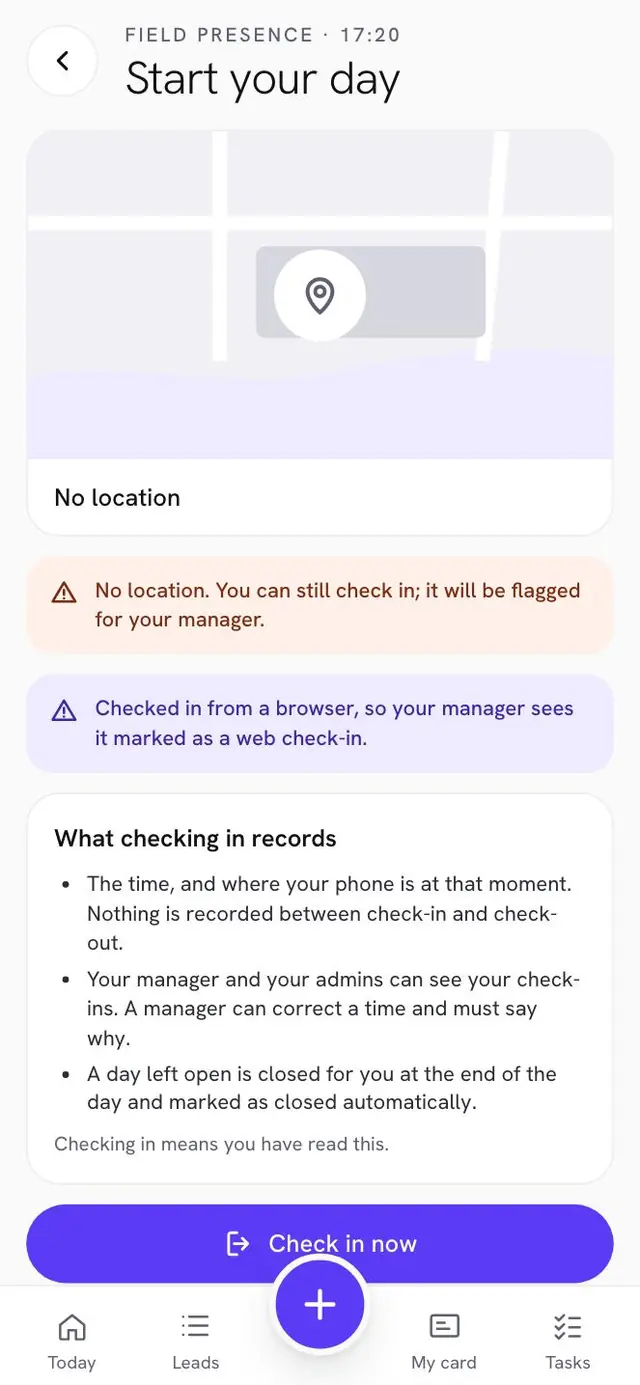
Start your day so your manager knows you are at the stand or on the road. Your location is read once, and never followed.
This is part of Field Presence. Your company turns it on. If you do not see Check in on Today, it is not on for you.
Start your day
- Tap Check in on Today. Or tap +, then Check in.
- Wait a moment while the app finds your location.
- The first time, read What checking in records.
- If your manager asks for a photo, take it. See Check-in photos.
- Tap Check in now.
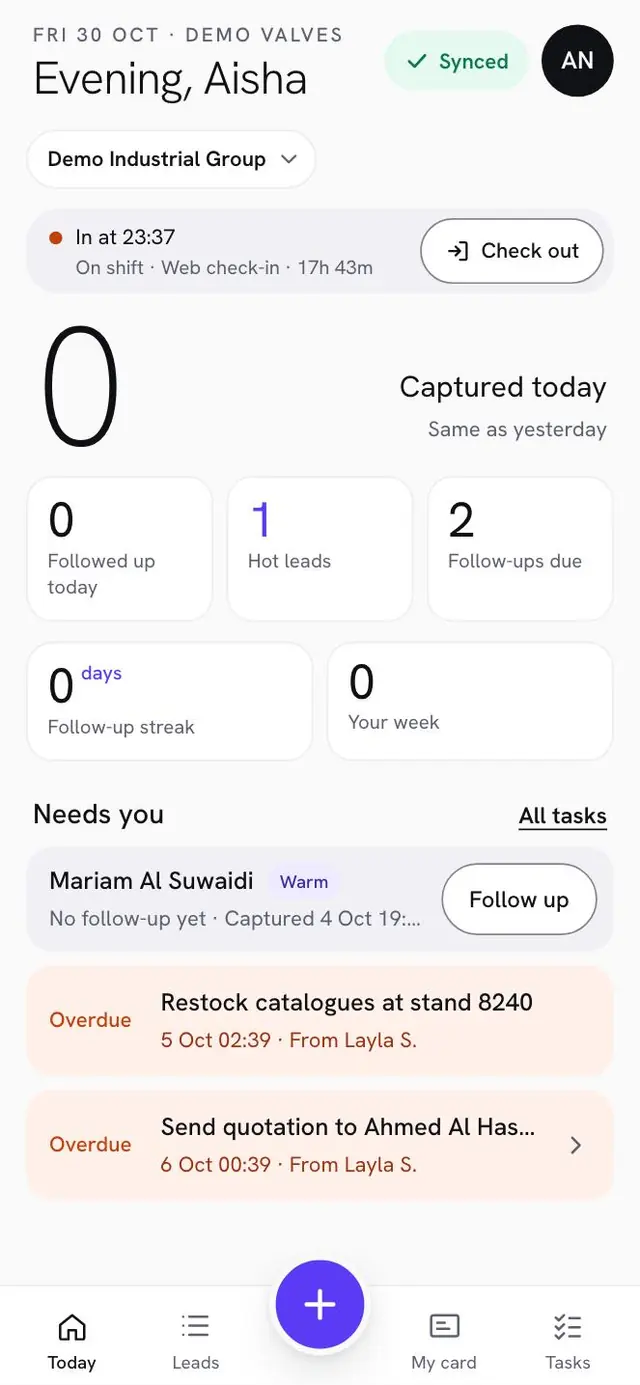
Today then shows In at the time, On shift, and Check out.
End your day
Tap Check out on Today, or +, then Check out. Then tap Check out now. Your location is read once more.
What is recorded
- Your location is read once, at the moment you check in or out, with the app open. The app does not follow you in between.
- Your manager and your admins can see your check-ins.
- A manager can correct a time and must say why. You can see the reason.
What the location screen says
| What you see | What it means |
|---|---|
| Within so many metres, Verified | A good reading |
| Low accuracy | The reading was over 100 metres out. You can still check in |
| No location | It could not be read. You can still check in. It is marked for your manager |
A check-in is never refused for a missing location or photo.
Marks your manager may see
These are in My days too.
| Mark | What it means |
|---|---|
| From a browser | You used the web app. This is expected: the screen says so |
| Made with no signal | It was saved on the phone and sent later, with the phone’s time |
| No location, Low accuracy | As above |
| Location looks simulated | The location did not look real |
| Phone clock was wrong | Your phone’s time was out |
| No photo | A photo was asked for and not taken |
| Away from the stand | You started the day clearly somewhere else, while on an event’s team |
| Closed automatically | You did not check out |
| Corrected by a manager | A manager changed a time |
If you forget to check out
You get a reminder at the end of the shift. A day left open is closed for you later, and marked Closed automatically. Tell your manager the real time so they can correct it.
With no signal
Check in and out as usual. The time you tapped is kept, and it is sent when you are back online.
Next
Still stuck?
Ask your company's admin, or write to hello@lucidarc.ae. Say which screen you were on and what you expected to happen.