
Watch your team
One screen for who is in, what each person captured, what is overdue, which leads need an owner and which hot leads are waiting.
Open My team from the bottom bar on a phone, or from the side menu on a computer. It needs a connection.
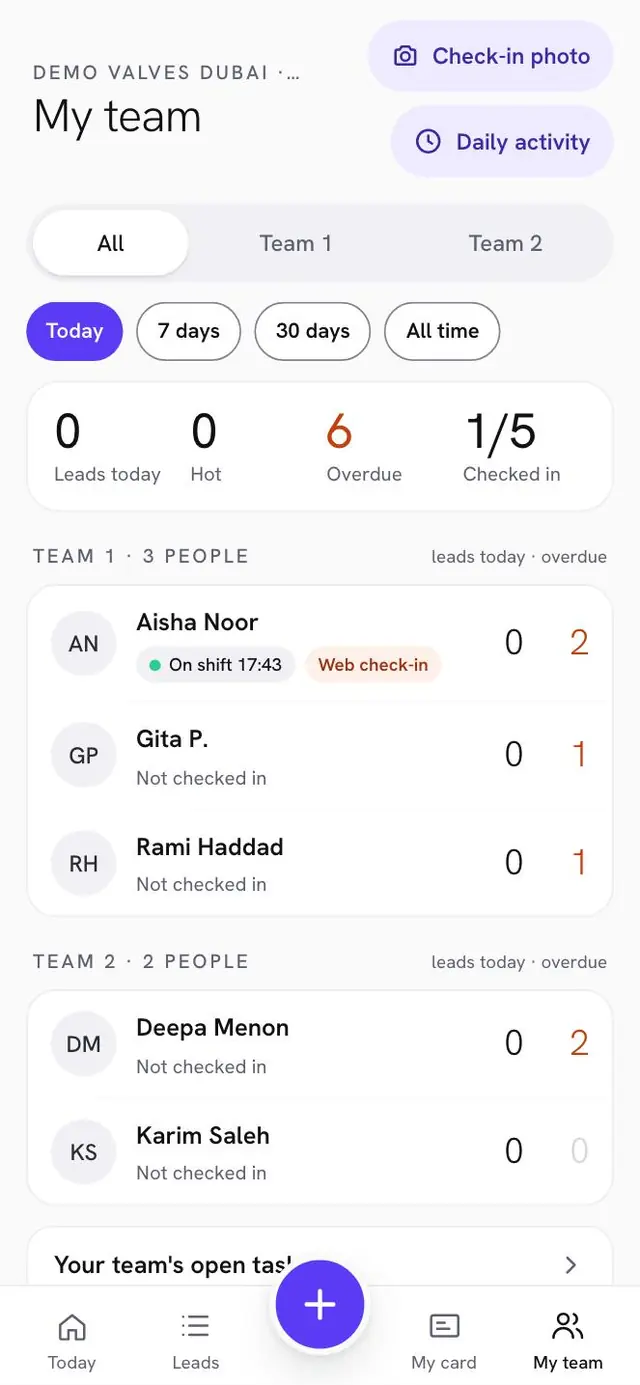
Choose what you are looking at
| On the screen | What it does |
|---|---|
| Team tabs | Pick one of your teams, or All. They show only if you have more than one team. The counts, the people and the hot leads narrow to that team. The boxes of leads that need an owner still show all your teams. |
| Today, 7 days, 30 days, All time | How far back the lead counts go. The other numbers do not change: overdue tasks and who is checked in are always about now. |
| Check-in photo | Sets who is asked for a photo. See Check-in marks and photos. |
| Daily activity | Each person’s days, hours and visits. See Daily activity. |
Check-in photo and Daily activity show only where Field Presence is on.
The four counts
| Count | What it means |
|---|---|
| Leads today, or Leads for a longer period | Leads your people captured in that period. |
| Hot | The hot ones among them. |
| Overdue | Open tasks past their due time, across your people. |
| Checked in | How many of them are on shift now, such as 3/5. Without Field Presence, this box shows Open leads instead. |
Each person
People are listed by team. The two numbers on the right are leads and overdue tasks. Under the name you see where they are:
| Status | What it means |
|---|---|
| On shift and a time | Checked in, and for how long. A mark beside it, such as Web check-in or No location, is explained in Check-in marks and photos. |
| Visit and a company | At a customer now, and for how long. |
| Not checked in | No check-in today. |
| Day ended | Checked in and out today. |
Without Field Presence, each person shows their open leads instead.
Tap a person to see their leads. The top of the list says whose they are. Show all goes back to everyone’s leads, and Export then saves that person’s leads only.
Leads that need an owner
These boxes appear only when there is something to do. Nobody gets a follow-up reminder for these leads until you give them to someone.
| Box | Why the leads are there |
|---|---|
| Leads to assign | Their owner no longer has access. The box names the person. |
| Waiting for an owner | They came from a stand’s kiosk or an imported list, and were left for a manager to hand out. |
Tap Assign in the box to hand all of them on: see Hand leads over.
Further down
- Hot leads still waiting lists hot leads with no follow-up, with Nudge beside each. See Hot leads still waiting.
- Your team’s open tasks opens the tasks of your people. See Team tasks.
- Reports and export opens Reports.
If something looks wrong
| You see | What to do |
|---|---|
| “Nobody reports to you yet” | Ask your admin to put people in your team. |
| Someone is missing | They may be switched off or in another team. Ask your admin. |
| A count looks low | Check the period and the team tab first. |
Still stuck?
Ask your company's admin, or write to hello@lucidarc.ae. Say which screen you were on and what you expected to happen.