
Branding
Give each company its colour and logo for cards and lead pages, and add the link to your privacy notice.
Each company’s colour and logo appear on its reps’ cards and on the pages leads open. Reps cannot change them. Open Branding.
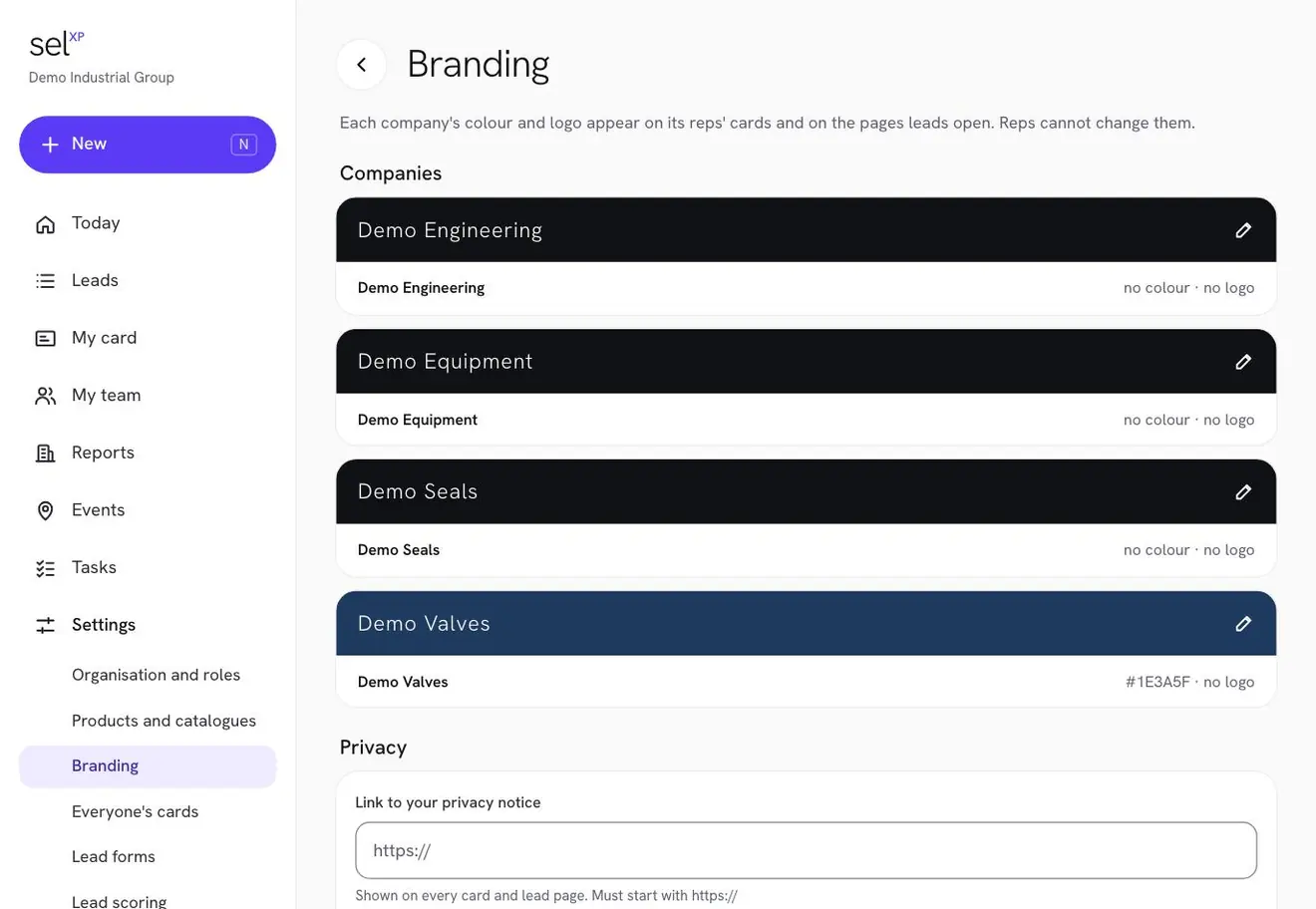
Set a company’s colour and logo
- Tap the company.
- Under Brand colour, pick a colour. It is used behind the logo. Text on it turns dark or white by itself so it can be read. Remove clears it.
- Under Logo, choose a PNG, JPEG or WebP file under 256 KB. A wide logo with a transparent background works best. Remove the logo takes it away.
- Tap Save.
The list shows each company’s colour, or no colour, and logo or no logo.
Where it shows
- On the digital card of that company’s people.
- On the pages leads open from a follow-up.
Add your privacy link
- Under Privacy, paste the Link to your privacy notice. It must start with https://.
- Tap Save.
It is shown on every card and lead page. Only a super admin sees this part. Leave it empty if you have no notice yet.
Good to know
- Branding is set for each company, not for each branch. A branch uses its company’s.
- An admin can change the companies they run.
Troubleshooting
- “That file is too big”. Use one under 256 KB.
- “Use a PNG, JPEG or WebP image”. Save the logo in one of those formats. Other formats, such as SVG, are not accepted.
Still stuck?
Ask your company's admin, or write to hello@lucidarc.ae. Say which screen you were on and what you expected to happen.