
Companies, branches and teams
Build your group's structure, give each team a manager, and use the whole organisation view to spot what is unfinished.
Open Organisation and roles. The top line counts your companies, branches, managers, teams and people. The Structure list is below it. Choose a company, branch or team to see its people.
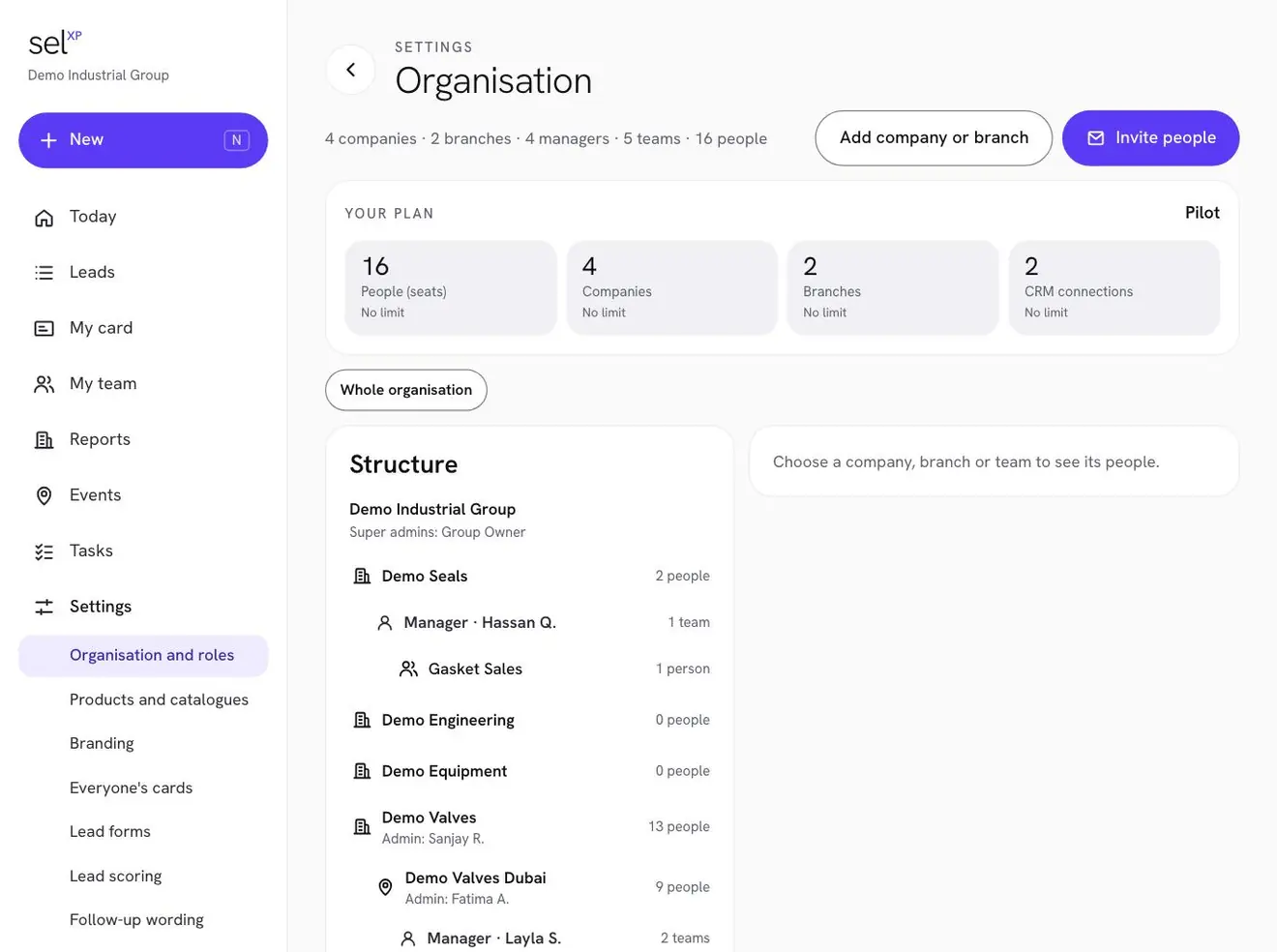
How the structure works
- A company sits at the top of the group.
- A branch belongs to a company. A branch cannot belong to another branch.
- A team belongs to a company or a branch, and always has one manager.
Who reports to whom decides who sees whose leads. One person can manage more than one team.
Add a company or branch
- Tap Add company or branch.
- Choose Company or Branch. Only a super admin can add a company, so an admin is offered a branch.
- For a branch, choose what it Belongs to.
- Type the Name and tap Save.
You can also open a company and tap Add branch.
For everything a new company needs, see A new company in the group.
Add a team
- Open the company or branch and tap Add team.
- Type the Team name.
- Check the Company or branch.
- Choose the Manager, then tap Save.
A team needs a manager from the start, so invite that person first if they are not in the list. A sales rep you choose as manager becomes a sales manager.
Change a team
Open the team. These are the options:
| Option | What it does | Who |
|---|---|---|
| Change (beside the manager) | Gives the team a new manager. | Admins of that company or branch, super admins |
| Rename | Changes the team’s name. | The same |
| Add member | Opens the invite form with this team chosen. | The same |
| Add someone from the group | Adds a person who is already here, as well as their own team. | Super admins |
| Remove | Removes the team. Only shown when nobody is in it. | Admins of that company or branch, super admins |
Change a company or branch
Open it. Rename changes its name. A company or branch with nothing in it shows Remove at the bottom. A company can only be removed by a super admin, and a branch by an admin of its company.
It cannot be removed if:
- it still has branches, teams or people. The app says “Move its branches, teams and people first”.
- leads are tagged with that company.
See the whole organisation
Super admins have a Whole organisation button above the structure. It shows the whole group on one screen, with each company, branch and team and the people under them.
- Tap a person to change them.
- Print or save as PDF gives a copy on paper.
- Worth a look lists what seems unfinished: a team with nobody in it, a person in no team, and teams with the same name.
Good to know
- The structure list names the super admins at the top, and the admin of each company or branch beside it.
- Admins are not added here. Invite a person with the level Admin, or change someone’s level.
Still stuck?
Ask your company's admin, or write to hello@lucidarc.ae. Say which screen you were on and what you expected to happen.