
Finding your way around
The bottom bar, what Today shows you, what is in Profile, and where things are on a computer.
The bottom bar
On a phone, five buttons sit along the bottom of the screen.
| Button | What it is for |
|---|---|
| Today | What needs you now |
| Leads | The leads you own. See Your leads |
| The round + button | Tap for Quick actions. Hold it to open the card scanner straight away |
| My card | Your digital card and its QR code |
| Tasks | Your to-do list and planned visits |
Managers and admins see My team where a rep sees Tasks. In a personal space, Leads is called People and Tasks is called Follow-ups.
Today
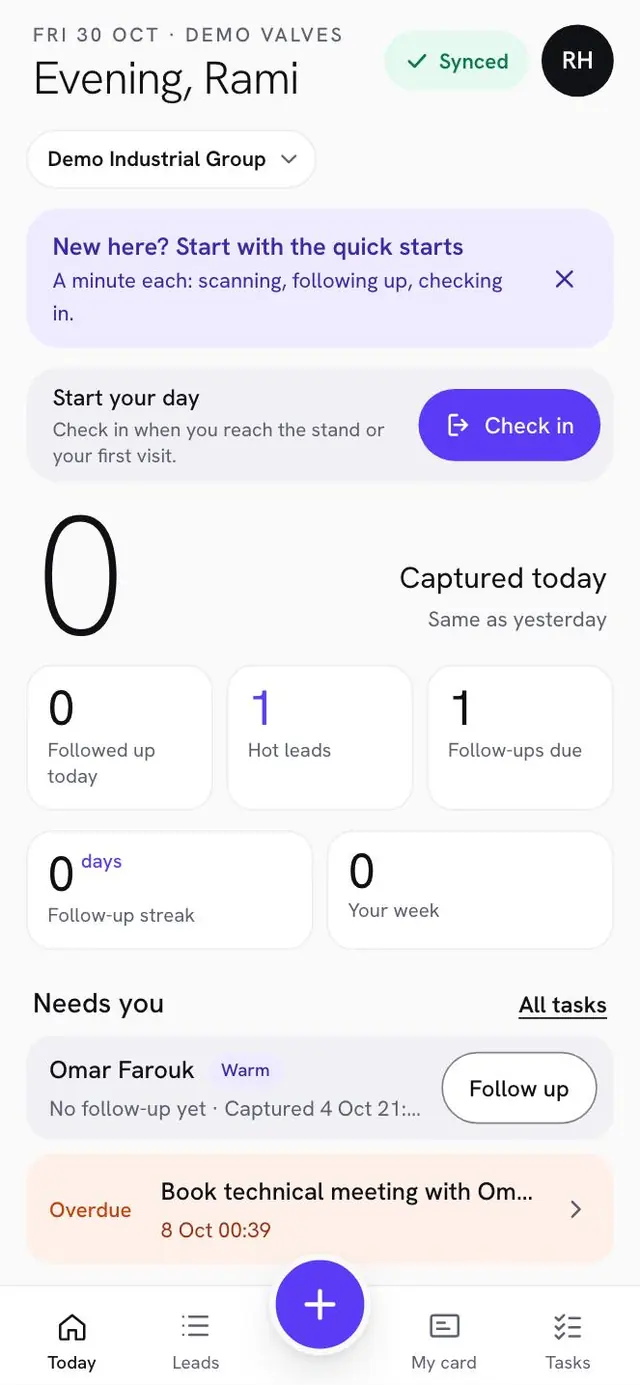
Today starts with the date and your company. From the top down:
| Part | What it shows |
|---|---|
| The sync mark | Synced, 2 to sync or Offline. Tap it to open the Sync centre |
| Your initials | Opens Profile |
| The company name | Shown if you belong to more than one space. Tap it to switch |
| New here? | A link to the quick starts. Close it when you do not need it |
| The check-in card | Check in or Check out, and any visit in progress. Only if your company uses Field Presence. See Check in and out |
| Captured today | Leads you captured today, against yesterday. Tap it to see them |
| Followed up today | Leads you followed up today |
| Hot leads | Your hot leads. Tap to see them |
| Follow-ups due | Tasks due by the end of today. Tap to open Tasks |
| Goals and streaks | Only if your company has turned them on. See below |
| The stand’s board | Shown while an event you are on is running. See Your events |
| Scanned cards to review | Cards waiting for you. See Cards to review |
Needs you
This list is what to do next. All tasks beside the title opens Tasks.
- No follow-up yet: leads of yours with no call, email or message after a day. Hot ones come first, then the longest wait. A lead whose email failed or bounced counts too. Up to three are shown.
- New for you: leads someone handed to you in the last three days, with who gave them to you. They stay here until you follow up.
- Tasks: your next five. Overdue ones are marked.
Tap a row to open it. Tap Follow up on a lead to go straight to the message.
Goals and streaks
If your company has turned these on, Today also shows them. Only you see your own numbers. They are in no report and go to no CRM.
| What you see | What it means |
|---|---|
| Follow up by morning | How many of the people you met are followed up, and the time to do it by |
| Follow-up streak | Days in a row. A line tells you when you have few saves left |
| Your week | Points for following up, against last week |
| Your week summary | At the end of the working week: your score, follow-ups, how many were within a working day, and people met. Tap Done to put it away |
| Your team’s ranking | Only if your company shows it, in teams of five or more. It shows the top third, never the bottom, and ranks follow-ups, never captures. Tap Hide to remove it |
Two switches for these are in Profile:
- Evening reminder: one email at most a day, at 19:00 on working days, only when people you met that day still need a follow-up by the morning.
- Show my team’s ranking: hiding it changes nothing for anyone else.
Profile
Tap your initials on Today to open Profile. Admins and managers see more here. A sales rep sees:
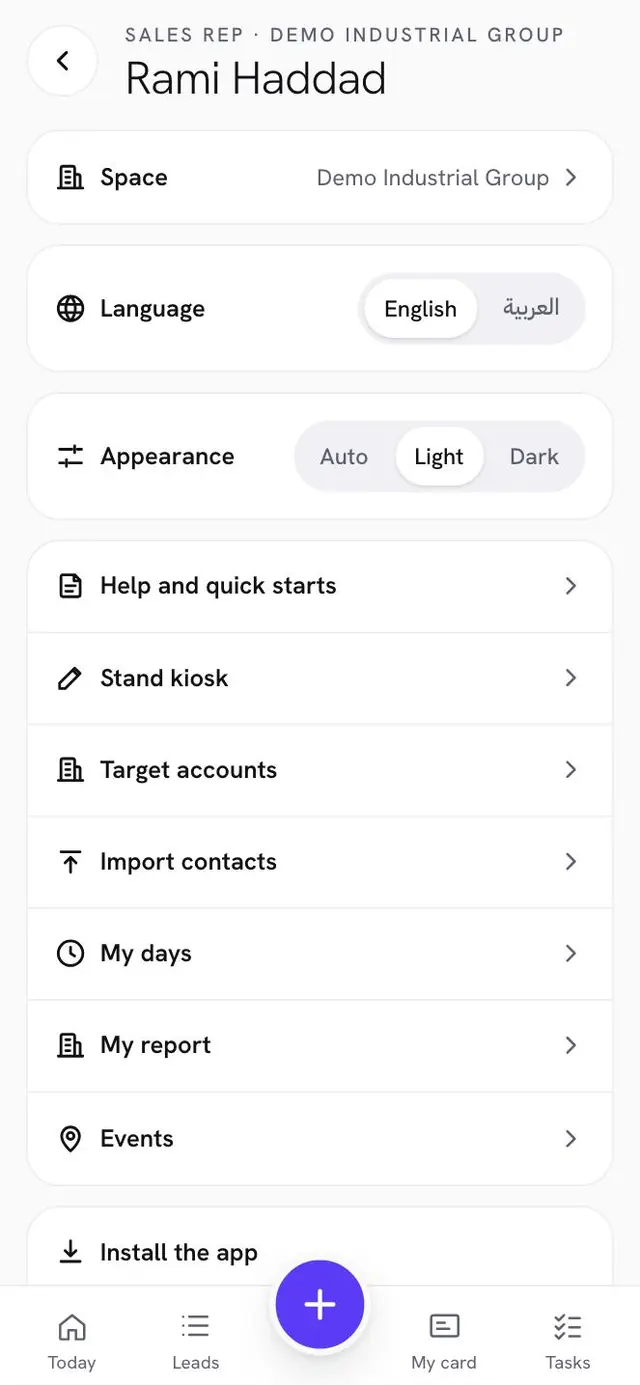
| Item | Go to |
|---|---|
| Space | Shown if you have more than one. See A personal space |
| Language, Appearance | Language, light and dark |
| Help and quick starts | Get help |
| Stand kiosk | Stand kiosk |
| Target accounts | Target accounts |
| Import contacts | Import contacts |
| My days | My days. Only with Field Presence |
| My report | My report |
| Events | Your events |
| Install the app | Put selXP on your phone |
| Reminders on this phone | Tasks and reminders |
| A space of your own | A personal space |
| Sync centre | Working with no signal |
| Sign out | Sign in |
| Leave your company, Delete my account | Leave a company or delete your account |
On a computer
A menu runs down the side instead of the bottom bar: Today, Leads, My card, Reports, Events and Tasks. Managers also get My team, and admins Settings.
- New at the top opens Quick actions. So does the N key, as long as you are not typing in a field.
- Your name at the bottom of the menu opens Profile. The sync mark sits under it.
Still stuck?
Ask your company's admin, or write to hello@lucidarc.ae. Say which screen you were on and what you expected to happen.