
Check-in marks and photos
What each mark on a check-in means, how to read it fairly, and how to choose who is asked for a photo.
A mark on a check-in tells you something was unusual. Treat it as a question to ask, not as proof of anything. A phone can lose signal, and a camera can fail.
The marks
You see marks on My team and in Daily activity.
| Mark | What it means |
|---|---|
| 45 min late | The day started after the shift start and any grace time your admin allows. Minutes count from the start of the shift. |
| Still checked in | The day has not been closed. |
| No location | The phone gave no location. |
| Low accuracy | The location was too rough to rely on. |
| Location looks simulated | The location may not be real. |
| Phone clock was wrong | The phone’s clock did not match. |
| Away from the stand | The check-in was at an event, but not near it. |
| Closed automatically | Nobody checked out, so the day was closed at the cut-off. |
| Corrected by a manager | Someone changed the times. Open the day to see who and why. |
| No photo | A required photo was not taken. It goes away if the photo arrives later. |
| Web check-in or From a browser | Made in a browser, not on a phone. |
| Made with no signal | Made offline and sent later. |
No photo, From a browser and Made with no signal show when you open a day, not on the Daily activity line. A browser or offline check-in is normal.
Ask for a photo
- On My team, tap Check-in photo.
- For each team, choose a setting under Start of day and under On a visit.
- To set one person apart, use their line under People. Same as team puts them back.
- Tap Save. Phones ask from their next check-in.
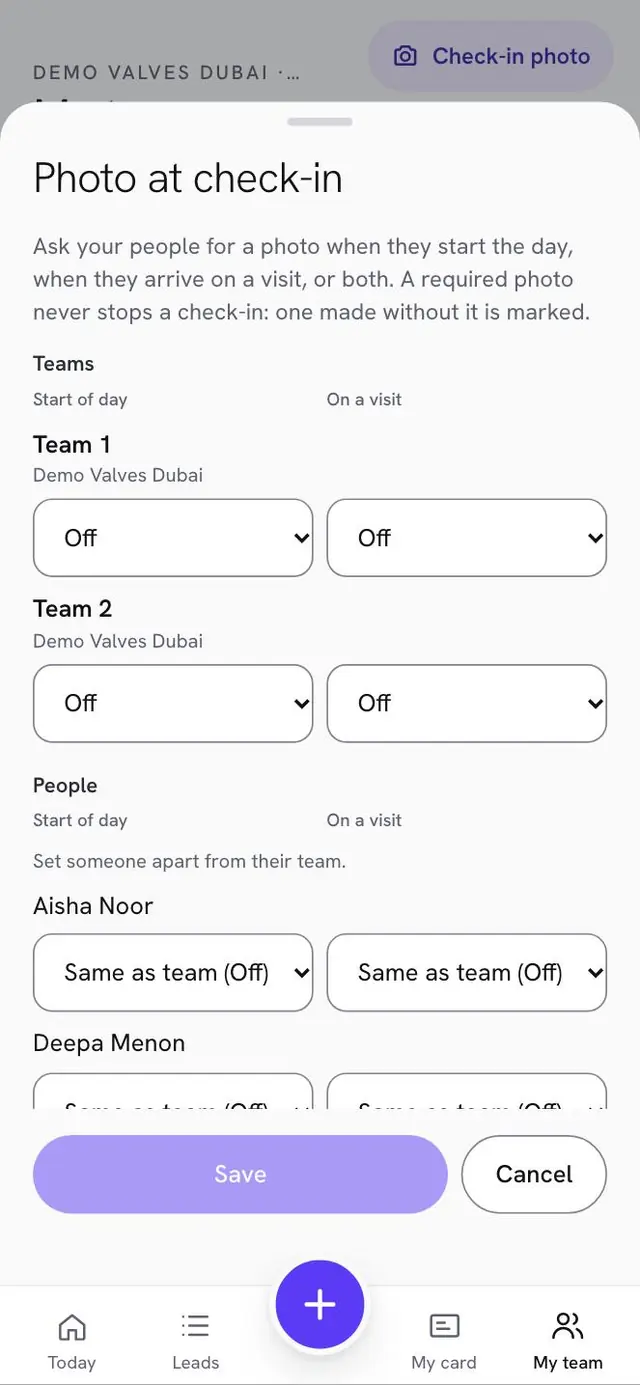
| Setting | What happens |
|---|---|
| Off | No photo is asked for. |
| Ask | The camera is offered. |
| Require | The app asks more firmly, and a check-in made without a photo is marked No photo. |
Either way the check-in goes through. You can set this for the teams you lead and the people in them. The change is recorded.
See the photos
Open a day in Daily activity. The photo is under the working day or visit. Photos are private: only the person, the people above them and your admins can see them.
What your people see when they check in is on Check-in photos.
What is not tracked
Location is read once, at the tap of check in or check out, with the app open. Nothing is read between those moments.
Still stuck?
Ask your company's admin, or write to hello@lucidarc.ae. Say which screen you were on and what you expected to happen.