
Privacy requests
Find what you hold about someone, download it for them, or erase it when they ask to be removed.
Use this when someone asks what you hold about them, or asks to be removed. Open Privacy requests. Only super admins can open it.
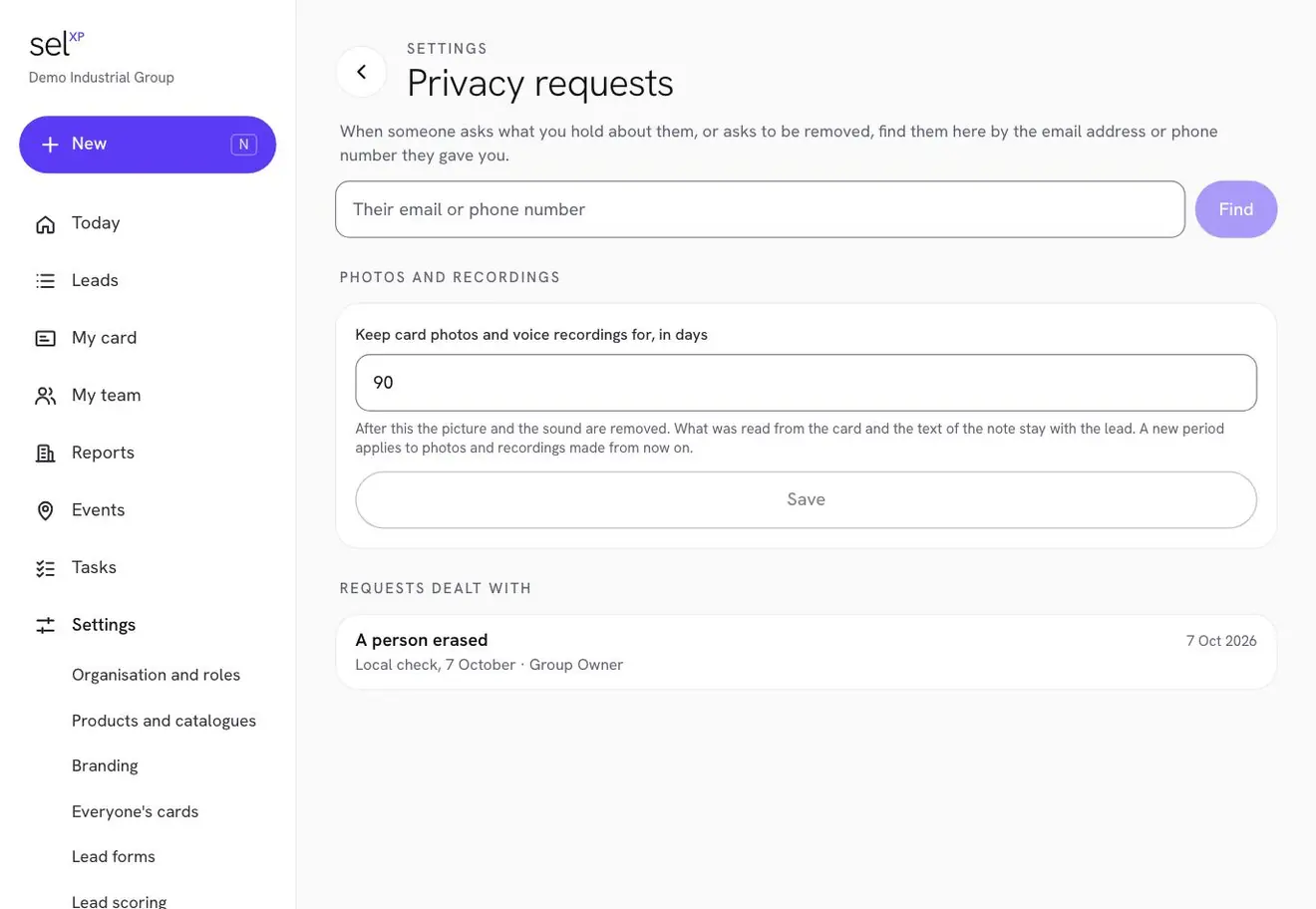
Find the person
Type the exact email address or phone number they gave you, and tap Find. Partial matches do not count. If it says nobody was found, check the spelling, or ask what other address they might have used.
Each match shows how many leads are held.
Give them what you hold
- Tap Download what is held.
- Under Where the request came from, note it for your records. For example “their email of 6 October” or a ticket number. Do not put their name here.
- Tap Download what is held again.
- Send the file to the person yourself.
The file has their details, their leads and history, the messages sent to them, and what was read from their card and heard in voice notes. Photos, recordings and attached files are listed by name.
Erase them
- Tap Erase….
- Read what will go.
- Note Where the request came from.
- Tick that you have checked this is the right person.
- Tap Erase for good.
Their contact record and leads go, with the history, tasks, messages, card photos, voice notes and attached files.
This cannot be undone.
- Your CRM is not touched. If their leads were sent there, remove them there too. The app reminds you if so.
- Backups are not touched. They age out on their own schedule.
Requests dealt with
Each request is listed under Requests dealt with, as A person erased or A person’s data handed over, with the note, the date and who did it.
Good to know
- To remove one lead and not everything about a person, open the lead and tap Delete lead.
- For how long photos and recordings stay, see How long things are kept.
Still stuck?
Ask your company's admin, or write to hello@lucidarc.ae. Say which screen you were on and what you expected to happen.