
Import contacts
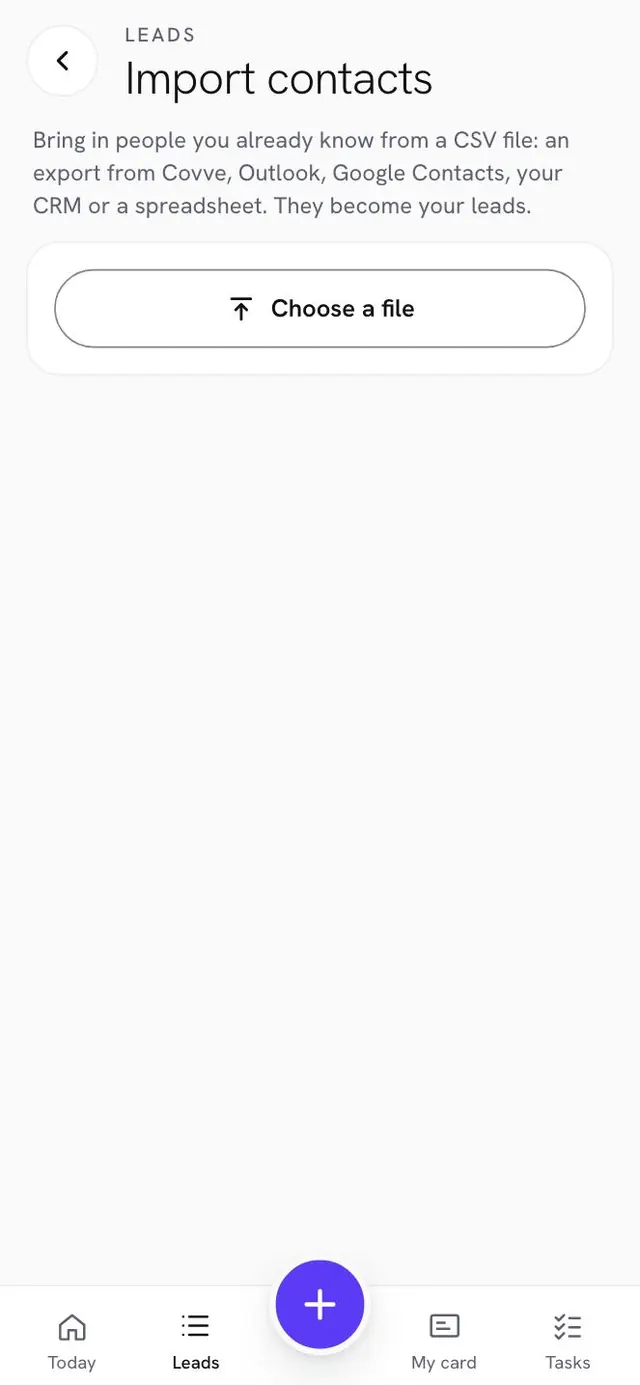
Bring in people you already know from a CSV file, such as an export from Outlook, Google Contacts, your CRM or a spreadsheet.
Before you start
- The file must be a CSV. In Excel, use Save As and pick CSV.
- It needs a heading row, and up to 2,000 rows under it. Split a longer list into smaller files.
- Each person needs a name, and an email or phone number.
Import
- Open Profile, then Import contacts. The file is read on your device.
- Tap Choose a file.
- Under What each column is, check each column against the sample shown. The app guesses them. Choose Leave out for a column you do not want.
- See how many contacts are ready, and how many cannot be imported. See why lists the line and the problem: no name, or no email or phone number.
- Under Met at an event?, pick one if this file is the list from a single event.
- Tick Leave them for a manager to hand out if they should not become your own leads. They wait under Leads to assign on My team.
- Tap Import. The button shows the count.
The columns can be Full name, First name, Last name, Job title, Company, Email, Phone, Website, Address and Notes.
Afterwards
The app says how many are now your leads. Then:
- Already known lists people your company already has: your own leads, or a colleague’s. They are left alone and not added again. Tap one you may open to go to it.
- See your leads opens Leads.
Good to know
- Imported leads do not trigger follow-up reminders. They go to your CRM only once someone works on them.
- If the connection drops, nothing is lost. Tap Carry on importing when you are back. No one is added twice.
- Choosing another file starts again.
Still stuck?
Ask your company's admin, or write to hello@lucidarc.ae. Say which screen you were on and what you expected to happen.