
Someone in two teams
Put one salesperson in teams of more than one company, with one sign-in and one seat, and control what each manager sees.
A person has one team of their own. A super admin can put them in other teams too, in any company or branch of the group. They are added, not moved.
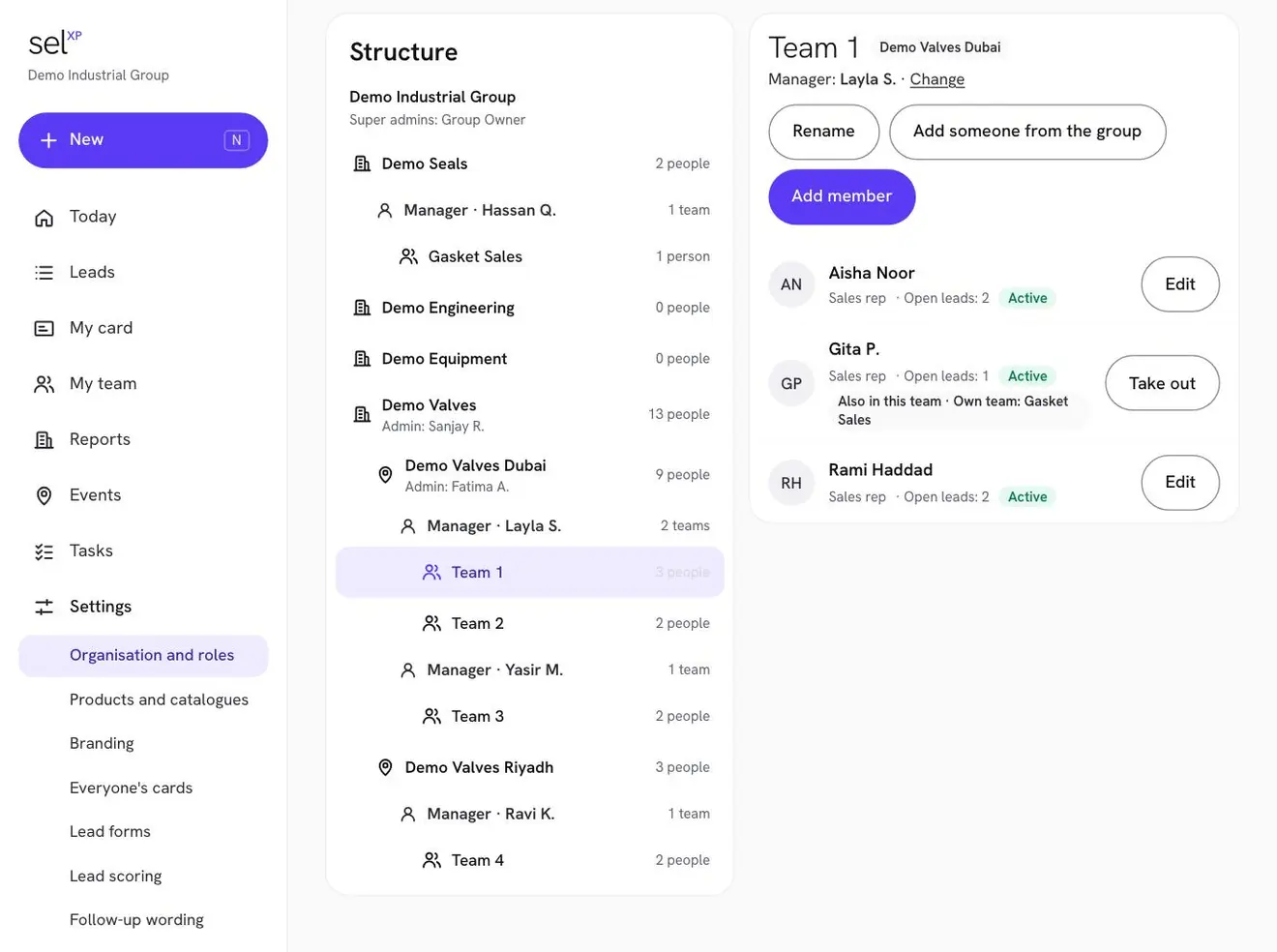
Add someone to another team
- Open Organisation and roles, then the team they should also be in.
- Tap Add someone from the group.
- Find them by Name or email and choose them.
- Confirm with Add someone from the group.
You can also tap Invite people and type their address. The form says they are already here. Choose a team and tap Add them to that team as well.
What changes
- They stay in their own team and company, keep one sign-in and use one seat.
- They get an email saying they were added.
- Both managers see them on My team.
- Each manager sees only the leads that count under their own team.
- The person chooses the company for each lead in Lead for on the review screen. That decides which team it counts under.
- In the team’s list they are marked Also in this team, with their own team named.
An admin of the person’s own company or branch sees all their leads, whichever team they count under.
Take someone out
Open the team and tap Take out beside them. They leave that team only. Their own team is unchanged.
Who cannot be added
- Someone switched off. Switch them back on first.
- The team’s own manager, who is already on it.
- Someone already in the team.
Good to know
- Only a super admin can do this, because it reaches across companies. An admin who tries is told to ask one.
- If you move someone to a team they were already also in, it becomes their own team.
Still stuck?
Ask your company's admin, or write to hello@lucidarc.ae. Say which screen you were on and what you expected to happen.