
Get help
Quick starts in the app, answers to common problems, and who to ask when something does not work as you expect.
Quick starts in the app
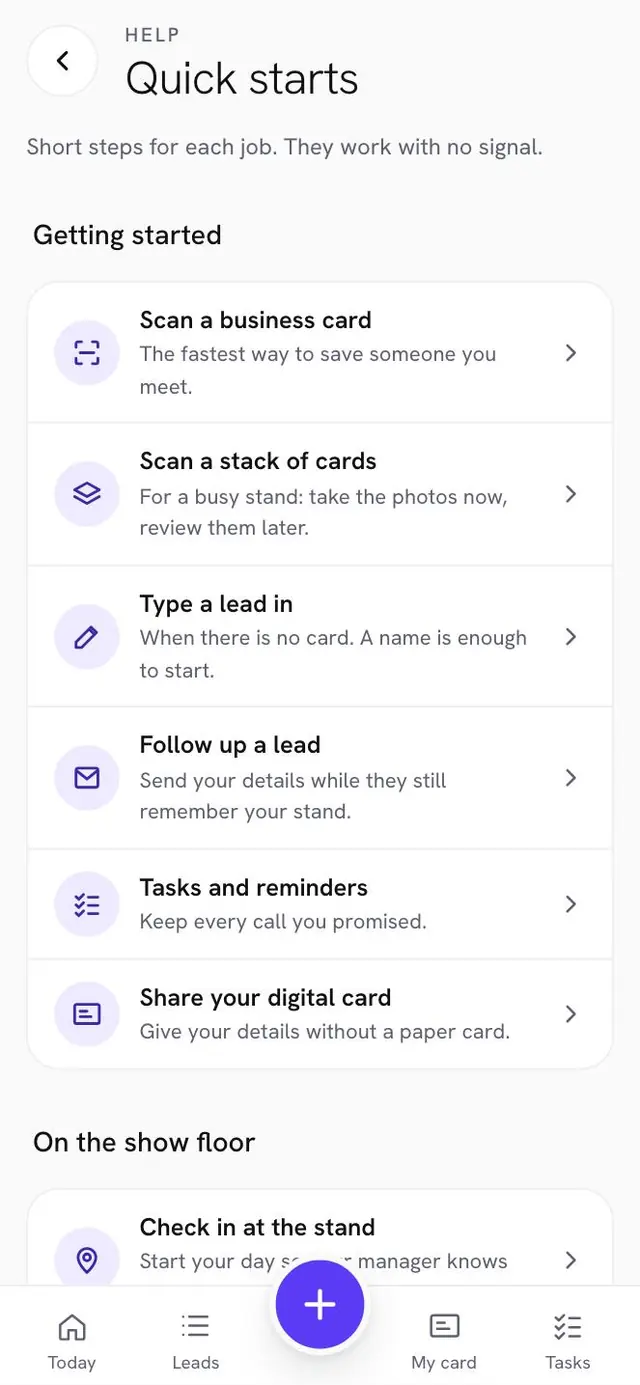
Open Profile, then Help and quick starts. Each job is shown in a few steps, with a Try it now button that opens the screen. They show only what you can do, and work with no signal.
Who to ask
- Your company’s admin can change most things: your team, your role, events, forms and settings. Ask your sales manager first about leads and tasks.
- Us: write to the email address under this page. Say which screen you were on, what you did and what you expected to happen. A screenshot helps.
Common problems
| What you see | What to do |
|---|---|
| No code arrives | See Sign in |
| The scan reads badly | Better light, card flat, fill the frame. Or use Quick lead. The photo is kept either way |
| The code scanner says it cannot read codes | See Scan a QR code or badge |
| “2 to sync” will not clear | See Working with no signal |
| No reminders on the phone | See Tasks and reminders |
| The event is not in the list | Type more of its name. Still missing? Save with No event and tell your manager |
| A lead is not yours | Ask your manager to assign it to the right person |
| You cannot change the follow-up’s words | Your company’s wording is fixed. Ask your admin. See Follow up |
| A saved lead was a mistake | Ask your manager. Only sales managers and super admins can delete a lead |
If we need to look inside your company’s space
selXP’s staff cannot see your company’s leads. If we need to look to help you, your company’s super admin approves it first, for a set time, and can end it at any moment. Everything we do while inside is recorded.
Still stuck?
Ask your company's admin, or write to hello@lucidarc.ae. Say which screen you were on and what you expected to happen.