
Set up an event
Add an exhibition with its dates, stand and targets, then choose its team, catalogues, wording and form.
An event makes every lead say where it was met, and shows the stand how it is doing. Admins and super admins add and change events.
For the list of exhibitions in your region, see The exhibitions calendar.
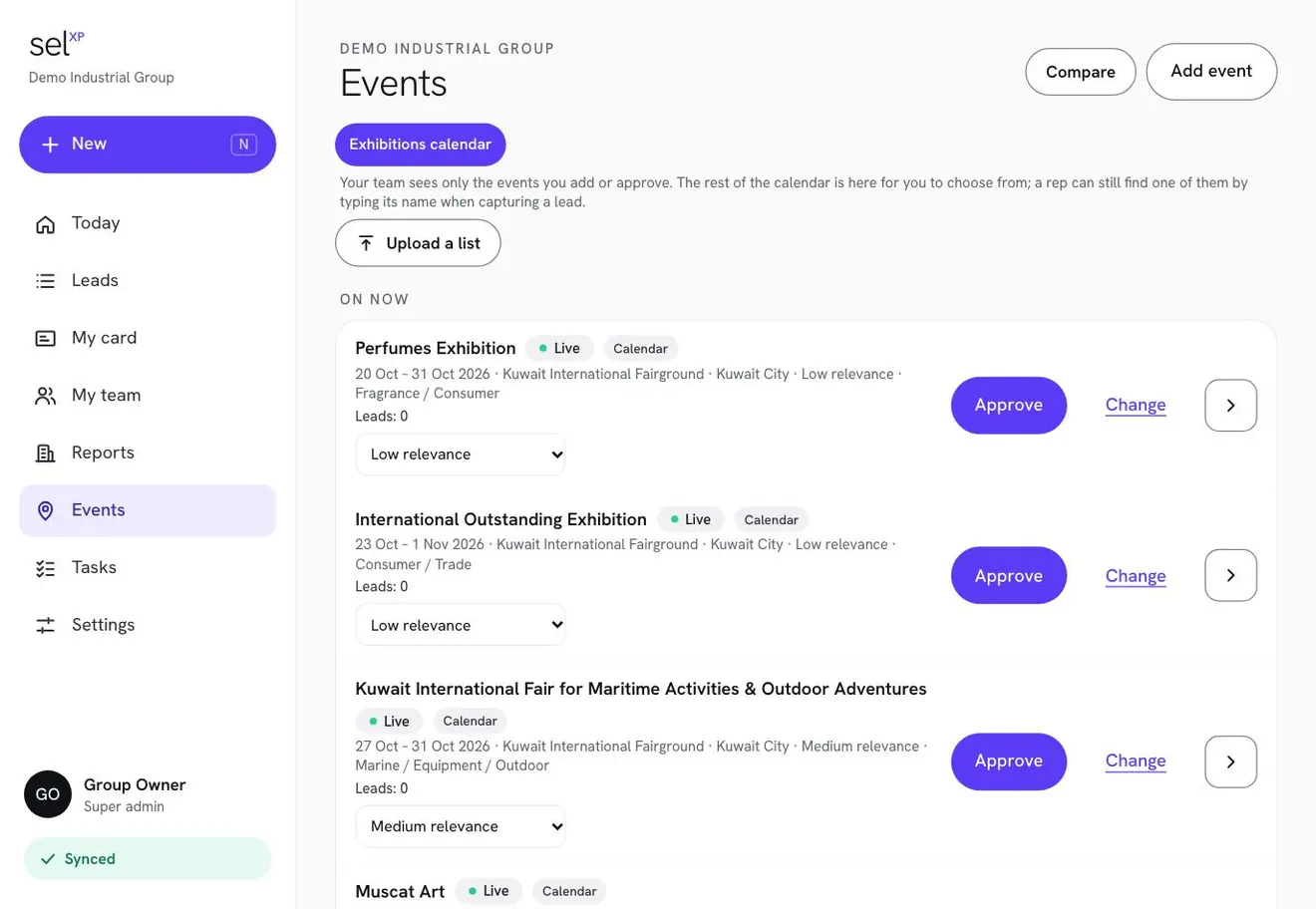
Add an event
- Open Events, then Add event.
- Fill in the fields below.
- Tap Add event. The event can now be picked when someone captures a lead.
| Field | What it does |
|---|---|
| Name | Needed. |
| First day | Needed. |
| Last day | Left empty, the event is one day. |
| Venue, Stand, City | Shown on the event’s row and to the team. |
| Country | Two letters, like AE or SA. |
| Leads | Target number of leads. |
| Qualified leads | Target number of hot and warm leads. |
| Pipeline and Currency | Target value of the opportunities. |
Targets are optional. Leave one empty for none. Progress shows in Reports, the event report and the stand’s board.
Set up its team, catalogues and wording
- In Events, tap Change on the event.
- Tap Team, catalogues and wording.
- Make your choices and tap Save.
| Part | What it does |
|---|---|
| Qualification form | The questions asked for leads captured here. Choose one of your forms, or keep the default. See Lead forms. |
| Team follow-up goal (%) | The share of this event’s leads the team should follow up by the next working morning. Left empty, it is 80%. Shown on the stand’s board while goals are on. See Working calendar, goals and ranking. |
| On the stand | The people working it. Use Find a person to search. They are offered this event first when they capture a lead. |
| Catalogues | Offered with every follow-up from this event, after those for what the lead asked about. Add them first under Products and catalogues. |
| Follow-up wording | An email and a WhatsApp message for this event only, in English and Arabic. Leave a message empty to use the standard wording, shown in grey. The same fields work here as in Follow-up wording. An email needs a subject. |
Where the stand is
If you use Field Presence, the Change form also has Where the stand is.
- Stand at the stand and open the event’s Change form.
- Set how far away still counts, in Counts as there within.
- Tap Use where I am now.
A day started clearly somewhere else by someone on this event’s team is then marked for their manager. Nobody is stopped from checking in. Clear removes the place.
During the event
- People on the stand are offered the event first when they capture a lead.
- The stand’s board shows the day’s captures against the target, for a screen on the stand. People on the event’s team, managers and admins can open it.
- Anyone can tap Add lead on an event that has not ended.
After the event
Tap the arrow on an event’s row to open its report. Managers and admins can open it.
- Add the costs, for example stand, travel and staff. Admins add them. The report then shows the cost of each lead.
- Compare, at the top of Events, puts your events side by side.
See Reports for what each number means.
Change or remove an event
- Change opens the same form. Tap Save when you are done.
- Remove is at the bottom of the form. An event with leads or check-ins cannot be removed.
Good to know
- The team’s phones keep the list of events, so reps can pick one with no signal.
- Dates decide whether an event is On now, Coming up or Past.
Still stuck?
Ask your company's admin, or write to hello@lucidarc.ae. Say which screen you were on and what you expected to happen.