
Scan a business card
The fastest way to save someone you meet: a photo of their card becomes a lead, ready for you to check.
Scan one card
- Hold the + button. Or tap it, then Scan a card.
- Check the event at the top of the screen. Tap it if it is wrong. See below.
- Lay the card flat in good light, fill the frame and tap the round button.
- Review lead opens. The card is read while you carry on, and what is found fills the form.
- If the card has a second side, tap Add the back.
- Check the details, fill in what you know, and save. See The lead form, field by field.
Nothing is saved until you tap Save only or Save and follow up.
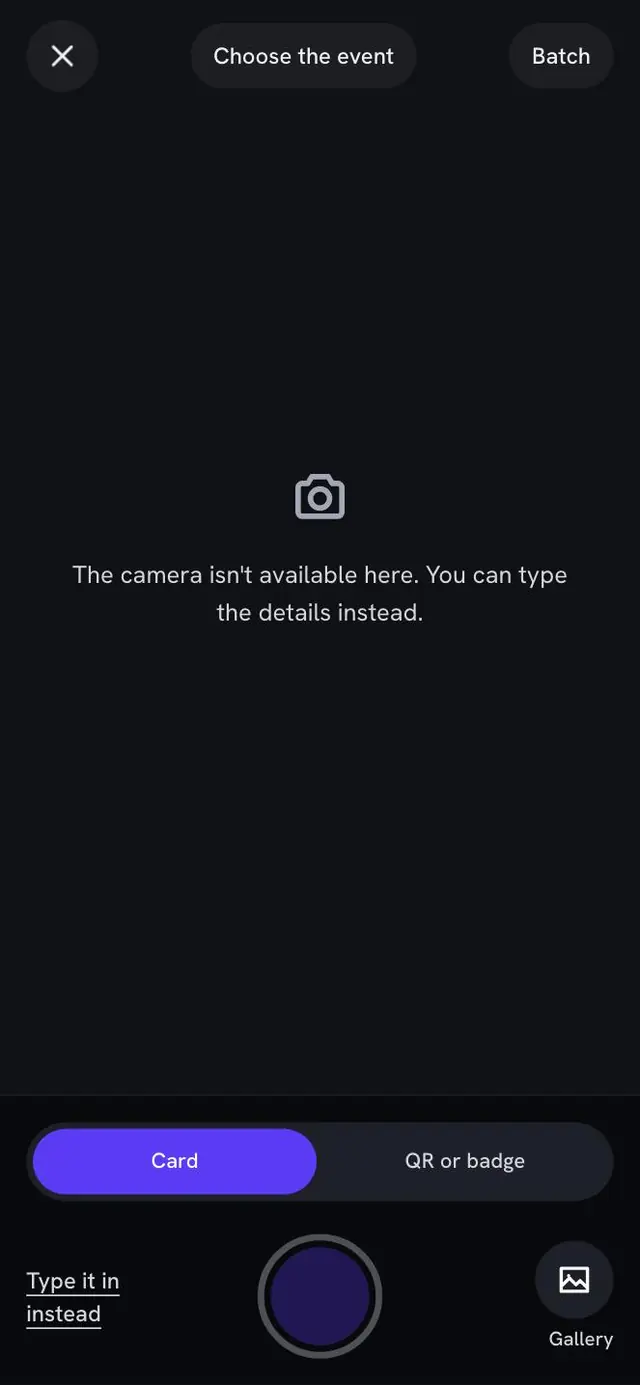
What is on the scan screen
| Control | What it does |
|---|---|
| The event, top centre | Says which event these cards are from. Tap to change it |
| Batch | Turns on one card after another |
| Card or QR or badge | Switches between a photo and reading a code |
| Type it in instead | Opens the empty form |
| The round button | Takes the photo |
| Gallery | Uses photos already on your phone |
| The cross | Closes the scanner |
Choosing the event
Tap the event name and start typing. With nothing typed, you are offered what is on now, then what starts soon, then what has just ended. Typing also finds an event by its venue or city.
The scanner remembers your choice for the rest of the day, so at a show you choose once. Choose No event if you did not meet at an exhibition. The event can still be changed on the form.
Not listed? Type more of the name. In a company, only an admin can add an event. If it still is not there, save with No event and tell your manager.
Photos you already took
Tap Gallery and choose photos of cards.
- One photo opens the form, as if you had just taken it.
- Several photos go to Cards to review, to go through one by one.
How well the card was read
The reading is a first draft. Look at it before you save.
| What you see | What it means |
|---|---|
| Reading the card… You can start below. | It is still being read. You can type meanwhile. What you type is never replaced |
| Card read. Check the details. | Done |
| Check this: read with 62% confidence | The app is not sure. Look at that field against the card |
| Also on the card | Further phones or emails. They are saved with the lead. Tap the cross on one to leave it out |
| A note that something “was left out” | It did not look like an email address or phone number |
| “has no country code” | Add the country code before you save |
| Could not read the card just now | Type the details. The photo is kept with the lead |
| No signal | Type the details. The photo goes with the lead when you are back online |
Anything handwritten on the card is put in Notes. If the card has a website or address, Website and address opens by itself.
Good to know
- Cards in Arabic and English are both read.
- The photo is kept with the lead. Open the lead to see it.
- If you save with no signal and the reading later finds more than you typed, the lead shows The card has more details. Tap Add them. Nothing you typed changes.
- If the person is already known, the app says so. See Someone you met before.
If the scan goes badly
Use better light, lay the card flat and fill the frame. Or use Quick lead. If the phone says the camera is not available, allow the camera for the app in your phone’s settings, or type the details.
Still stuck?
Ask your company's admin, or write to hello@lucidarc.ae. Say which screen you were on and what you expected to happen.