
Daily activity and payroll files
Each person's days, hours, visits and leads, how to correct a check-in time, and the files for HR and payroll.
Daily activity is part of Field Presence. On My team, tap Daily activity at the top, or find it in Profile.
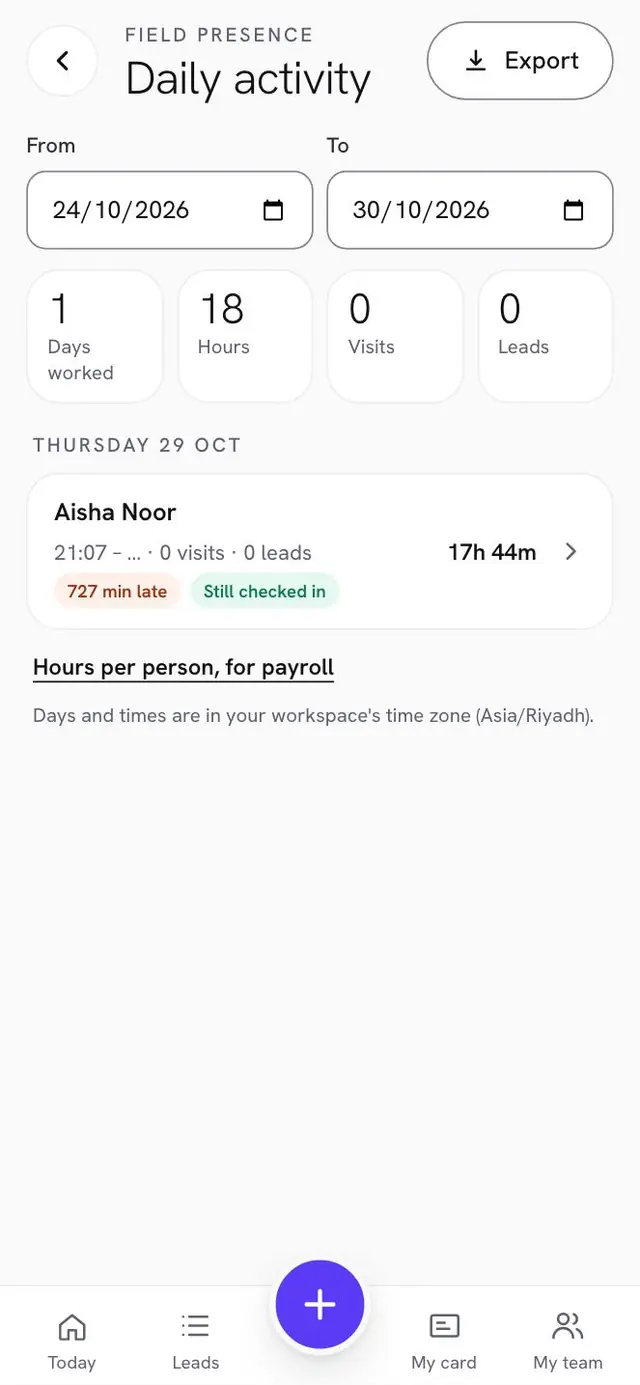
Choose the days
Set From and To. It opens on the last seven days and can cover up to 62 days. Days and times are in your workspace’s time zone, whichever country you are in.
The four totals at the top are Days worked, Hours, Visits and Leads. Your own days are included, with your people’s.
Each line
There is one line for each person, for each day they checked in:
- their first check-in and last check-out
- how many visits and leads
- hours on shift, on the right
- any marks, such as 45 min late or Still checked in
Open a day
Tap a line to see that person’s day in order.
| Part | What it shows |
|---|---|
| Working day | Check-in and check-out times, with Open in maps where a location was read. |
| Visit | The company, the time on site, the check-in and check-out, who was seen, why, how it went, and any notes. Open the lead appears if the visit was to a lead. |
| Photo | The check-in photo, if one was taken. |
| Leads captured | The leads from that day, with the time. Tap one to open it. |
| Distance | About how far apart the check-ins were, in straight lines. It is a rough guide, not a route. |
Correct the times
Use this when someone forgot to check out, or a time is wrong.
- Open the day.
- Tap Correct the times on the working day or visit.
- Change Checked in or Checked out.
- Answer Why are you changing it? The person and your admins can see this.
- Tap Save the correction.
The check-in stays with a note saying who corrected it and why, and the line shows Corrected by a manager. The change is recorded in the audit log. Only the times change.
| Rule | What it means |
|---|---|
| Not your own | You cannot correct your own days. Your manager or admin can. |
| Past midnight | A check-out earlier than the check-in is taken as the next day. |
| No future times | A time cannot be later than now. |
| 24 hours at most | A day cannot be longer than that. |
Files for HR and payroll
| Button | File | What it has |
|---|---|---|
| Export | daily-activity-2026-10-24-to-2026-10-30.csv |
One row for each person each day: Day, Name, Team, First check-in, Last check-out, Hours on shift, Visits, Hours on visits, Leads, Late by, Km between check-ins, Flags. |
| Hours per person, for payroll | payroll-hours-2026-10-24-to-2026-10-30.csv |
One row for each person: Name, Team, From, To, Days worked, Hours on shift, Late starts, Minutes late, Days closed automatically, Days corrected by a manager, Visits, Km between check-ins. |
Both cover the days you chose. Every file is recorded with your name. The payroll file helps you check hours. It knows nothing about contracts or pay.
Correct any missed check-outs before you export, so the hours are right.
What this is and is not
Location is read once, when the person taps check in or check out. Nobody is tracked between those moments. A missing location or photo never blocks a check-in.
Still stuck?
Ask your company's admin, or write to hello@lucidarc.ae. Say which screen you were on and what you expected to happen.