
The exhibitions calendar
Keep a list of the region's exhibitions, rate them, approve the ones your team attends, and upload a list from a spreadsheet.
There are two lists, and it helps to keep them apart.
| List | What it holds |
|---|---|
| Your events | Exhibitions your companies take part in. They have a team, a stand, targets and a report. Your team sees these. |
| Exhibitions calendar | Every exhibition your people might visit. It waits here for you to choose from. |
To see it, open Events and tap the Exhibitions calendar button under the title. For admins it starts switched on. Entries are marked Calendar.
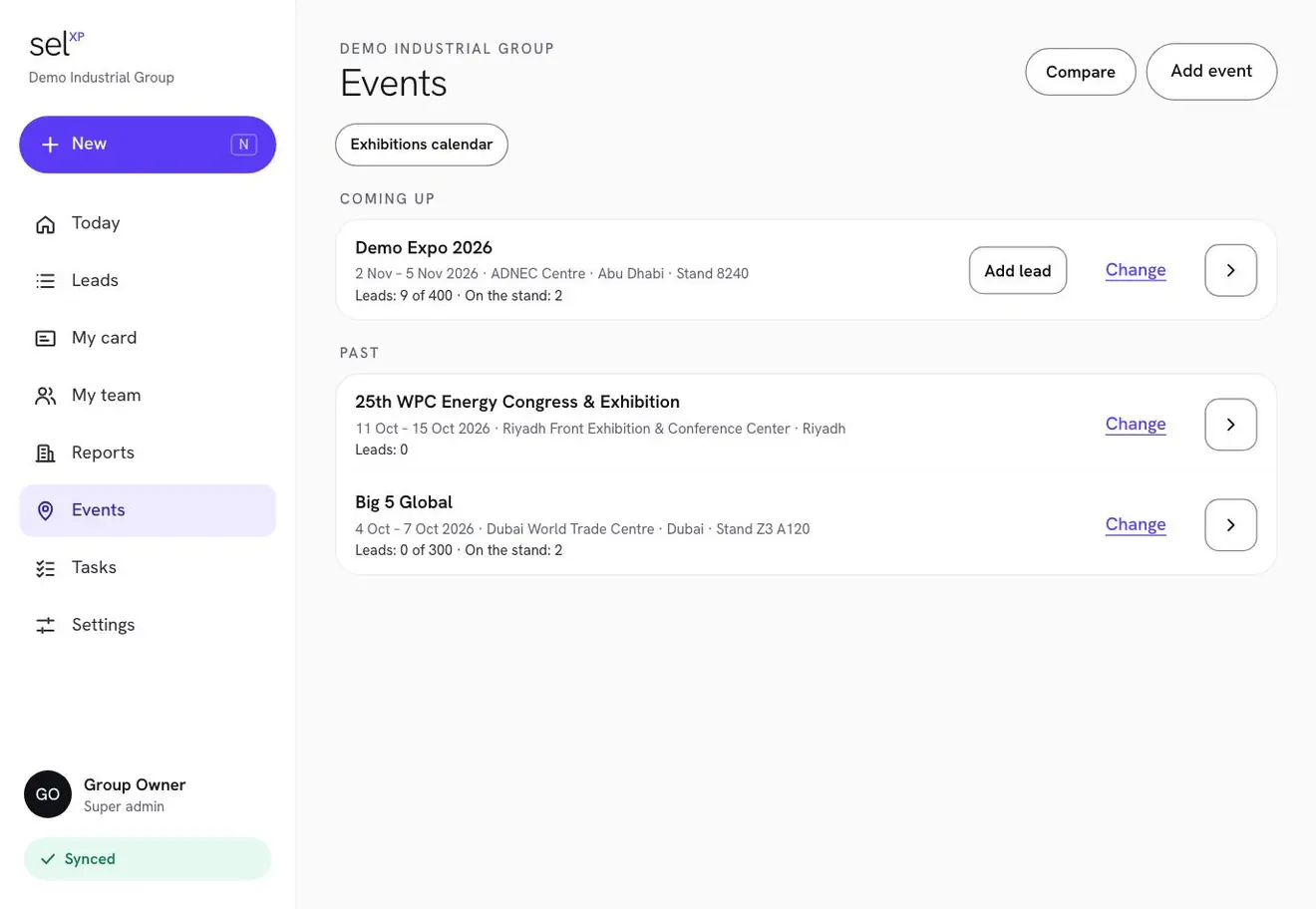
Approve an exhibition
- Approve makes it one of your events. The team then sees it.
- Change lets you add the stand and targets. See Set up an event.
- Take off the team’s list sends an approved event back to the calendar, as long as it has no leads and nobody on it. It appears only while the calendar is showing.
An exhibition also becomes one of your events by itself once a lead is captured at it or people are put on it.
Rate an exhibition
Each one has a relevance choice: High relevance, Medium relevance or Low relevance.
An exhibition that is only on the calendar is not offered to reps until they type its name. When a rep types, the rating decides where it comes among matches on the same dates. Your own events come first.
Upload a list
- Open Events with the calendar showing, and tap Upload a list.
- Tap Choose a file, and choose an Excel workbook (.xlsx) or a CSV file with one exhibition on each row.
- Check what the app found. It shows each sheet that holds a list, how many exhibitions it found, and under Which ones, and why the rows it left out.
- Tap the button that adds them to the calendar. It shows how many.
- Tap Back to events when it says Done.
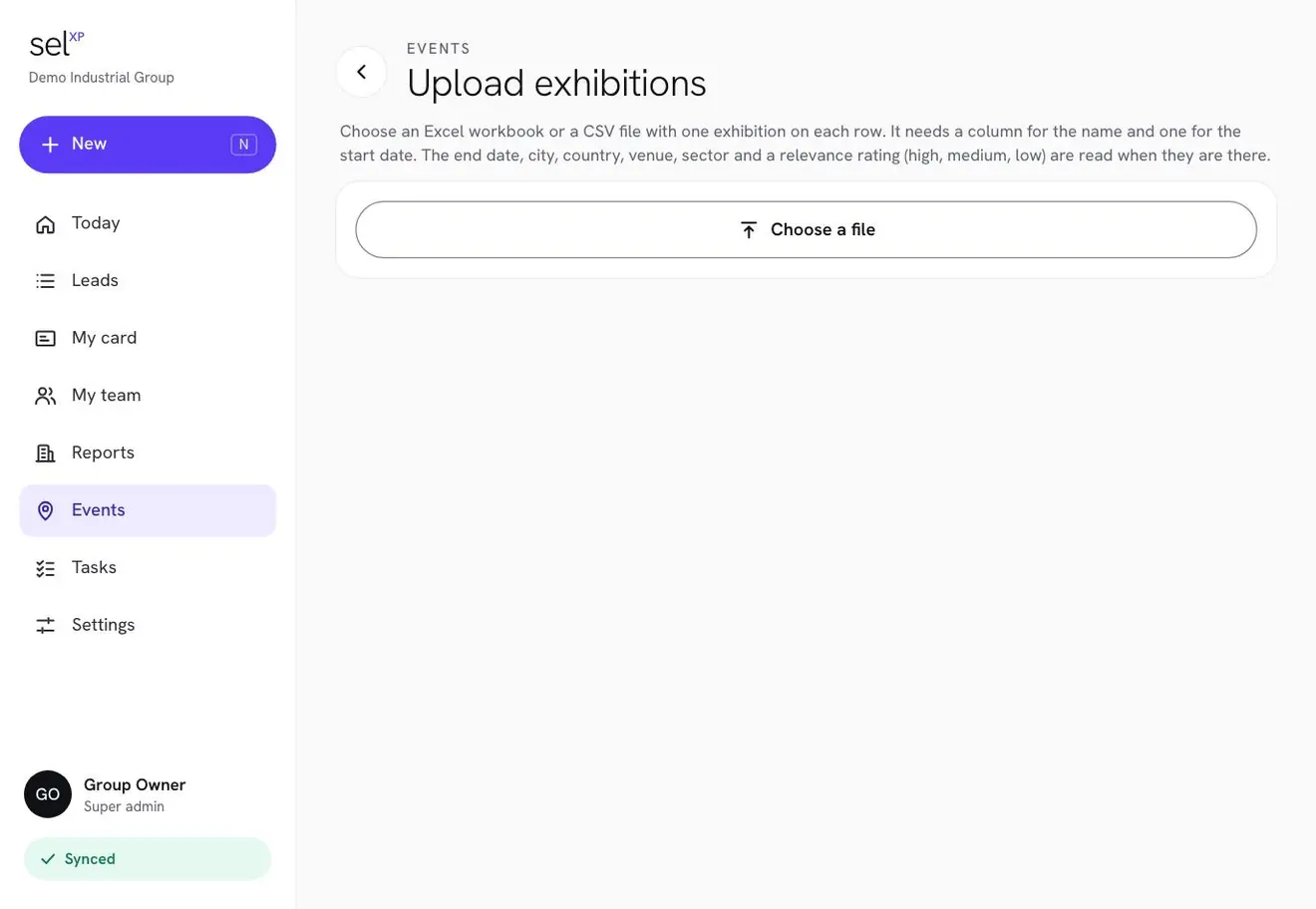
Columns it reads
The headings can have a title or notes above them.
| Column | Notes |
|---|---|
| Name | Needed. A heading with a word such as Exhibition, Expo, Event, Show, Name or Title. |
| Start date | Needed. An Excel date, or written like 5 Oct 2026 or 05/10/2026 (day first). A row with no real date is left out as “no dates yet”. |
| End date | Left empty, the exhibition is taken as one day. A row ending before it starts is left out. |
| City, Country, Venue, Sector | Read when they are there. |
| Relevance | High, Medium or Low. |
| Participation status | A row marked Participating, Exhibiting, Attending, Confirmed or Yes goes in as one of your events, not only on the calendar. |
Uploading again
- Uploading the same list adds nothing twice. Details and ratings are brought up to date.
- An exhibition that is already one of your events is left as it is.
- At the end the app says how many were added, brought up to date and left alone.
Troubleshooting
- “No list of exhibitions was found”. The file needs a heading for the name and one for the start date.
- More than 2,000 exhibitions. One file can hold up to 2,000. Split it and upload the parts.
- “Stopped: no connection”. Choose Carry on when you are back. Nothing is added twice.
Good to know
- Rows with no dates yet can be added later by uploading the list again.
- Sales reps can tap Exhibitions calendar to look through it too, but cannot approve or rate.
Still stuck?
Ask your company's admin, or write to hello@lucidarc.ae. Say which screen you were on and what you expected to happen.