
Products and catalogues
Add what you sell so reps can tap it on a lead, and link the catalogues that go out with each follow-up.
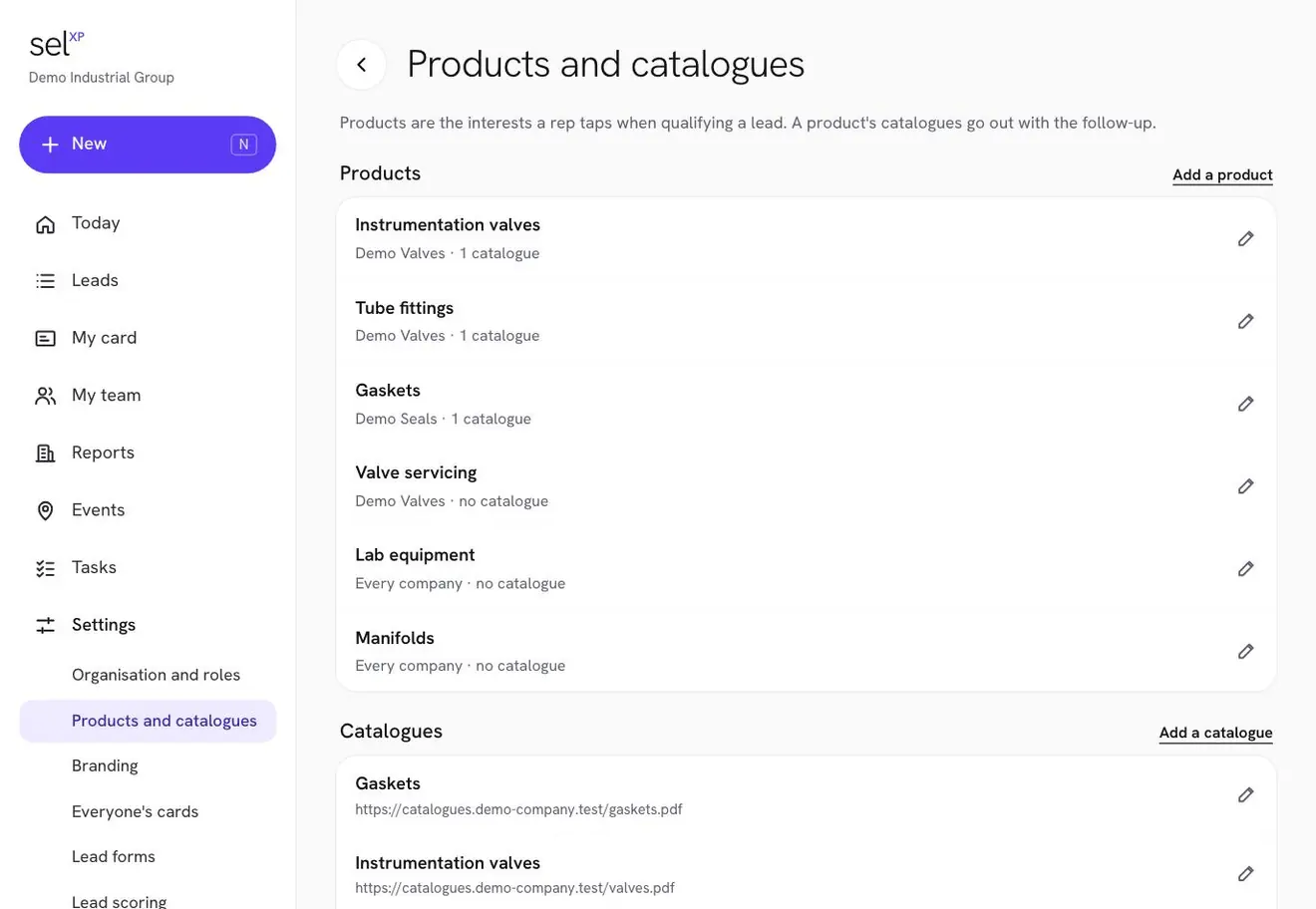
Products are the interests a rep taps when qualifying a lead. A product’s catalogues go out with the follow-up. Open Products and catalogues.
Add catalogues first, so you can attach them to products.
Add a catalogue
- Tap Add a catalogue.
- Fill in the fields below and tap Save.
| Field | What it does |
|---|---|
| Title | Needed. |
| Name in Arabic (optional) | Shown in Arabic. |
| One line about it (optional) | A short description. |
| Link to the file | Must start with https:// and open without signing in, because leads receive this link. |
| Sold by | Which company it belongs to. |
| Shown to reps | Untick to retire it. |
The app stores the link, not the file. Put the file somewhere your leads can open it, such as your website.
Add a product
- Tap Add a product.
- Fill in the fields below and tap Save.
| Field | What it does |
|---|---|
| Name | Needed. |
| Name in Arabic (optional) | Shown in Arabic. |
| Sold by | One company, or Every company. |
| Catalogues to send with it | Tick each one that goes out when a rep picks this product. |
| Shown to reps | Untick to retire it without losing its history. |
Change one
Tap the pencil beside it, change it and tap Save.
What happens next
- A rep taps a product on a lead. See The review form.
- Its catalogues are offered in the follow-up.
- Each row in the list shows how many catalogues the product has, or no catalogue.
Good to know
- An admin can add products for the companies they run. Only a super admin can choose Every company.
- You can leave a product off one form. See Lead forms.
- An event can add catalogues to every follow-up from it. See Set up an event.
Still stuck?
Ask your company's admin, or write to hello@lucidarc.ae. Say which screen you were on and what you expected to happen.