
Field Presence settings
Switch on check-in and check-out, set the working day, and decide what gets marked and how long check-ins are kept.
Field Presence is check-in and check-out for the working day and for customer visits. It is an add-on. If it is not in your plan, the screen says so. Open Field Presence. Only super admins can open it.
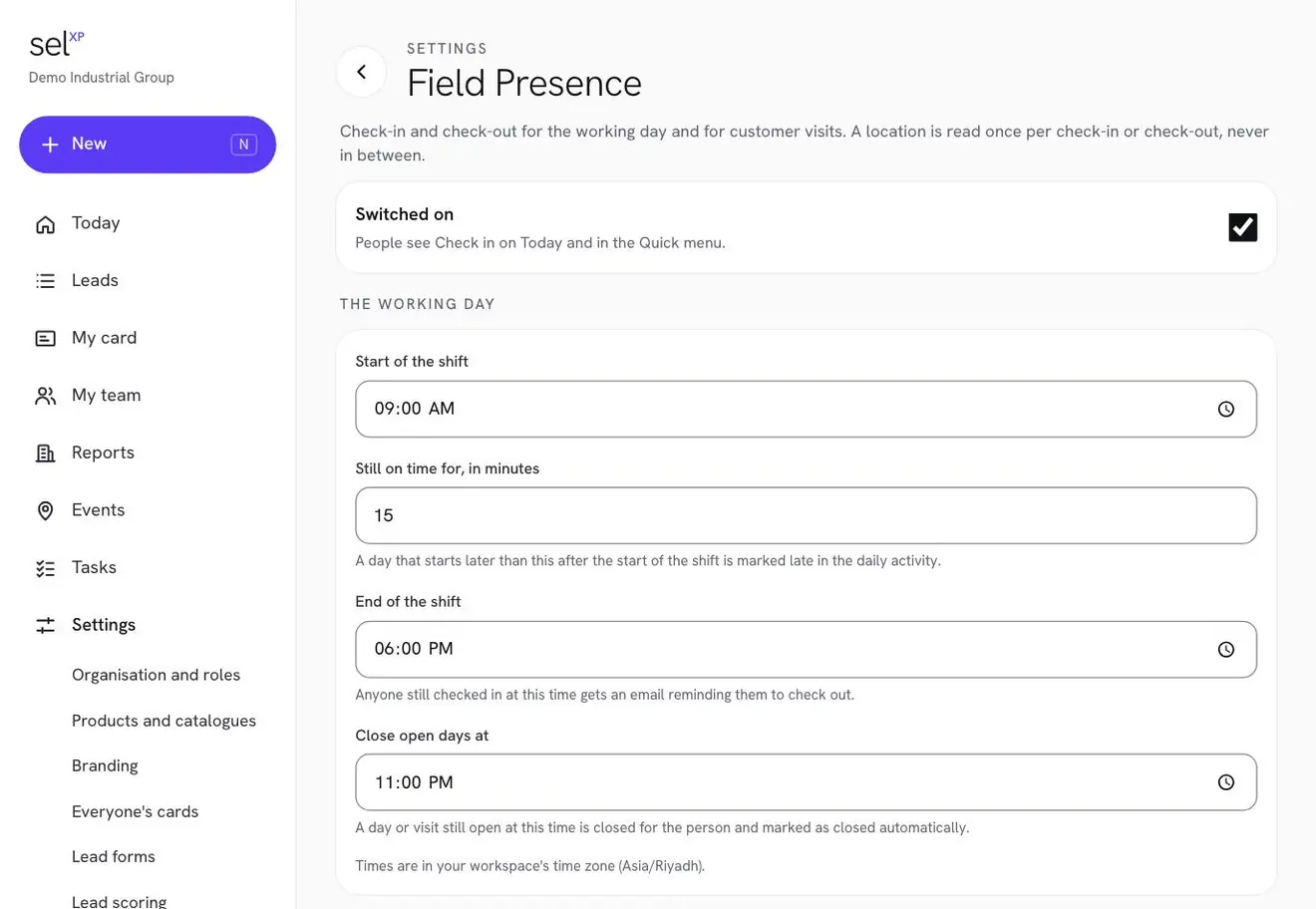
The settings
| Setting | What it does | Standard |
|---|---|---|
| Switched on | People see Check in on Today and in the Quick menu. | Off |
| Start of the shift | The start of the working day. | 09:00 |
| Still on time for, in minutes | A day that starts later than this after the start of the shift is marked late in the daily activity. 0 to 240. | 15 |
| End of the shift | Anyone still checked in at this time gets an email reminding them to check out. | 18:00 |
| Close open days at | A day or visit still open at this time is closed for the person and marked as closed automatically. | 23:00 |
| Daily email to managers | Once the day has closed, each manager is sent their people’s day: times, hours, visits and leads. | Off |
| Weak location, in metres | A check-in less exact than this is saved and marked as low accuracy. 10 to 2,000. | 100 |
| Phone clock out by, in minutes | A check-in from a phone whose clock is further out than this is marked. 1 to 120. | 5 |
| Keep check-ins for, in months | Older check-ins are removed for good, with their photos. 1 to 60. | 12 |
Tap Save. New times apply to days started from now on. Times are in your workspace’s time zone, shown on the screen.
The start of the shift must be before the end, and the reminder and the cut-off cannot be at the same time.
Names for visits
Call visits what your team calls them: Site survey for a technical meeting, Work order for an order received. Under Names for visits, tap a reason or an outcome, type your name for it, and an Arabic one if you like. Tap Save names.
Only the name changes. Visits are still counted the same way in reports and exports, and visits already made show the new name at once. Clear a name to go back to the standard one. Your team sees the new names the next time the app loads.
The rule the app keeps
A location is read once per check-in or check-out, never in between. A missing location or photo never stops a check-in. It is marked instead.
Each person is shown what checking in records the first time they use it. Tell your team the same in your own words.
Check-in photo rules
Photos are not set here. Managers and admins set them on My team, under Check-in photo.
- Choose Off, Ask or Require.
- Set them separately for Start of day and On a visit.
- Set them for each team, and for any one person apart from their team.
Even a required photo never stops a check-in. One made without it is marked. See Check-in photos.
Related
- A stand’s place can mark a day started elsewhere. See Set up an event.
- Check-ins and visits for your people: see Check in and out and Visits.
- Daily activity, corrections and exports: see My team and Reports.
Still stuck?
Ask your company's admin, or write to hello@lucidarc.ae. Say which screen you were on and what you expected to happen.