
A lead's page
Everything on a lead: calling, the temperature and why, editing details, files, voice notes, the CRM, the history and notes.
Open a lead from Leads or from Today.
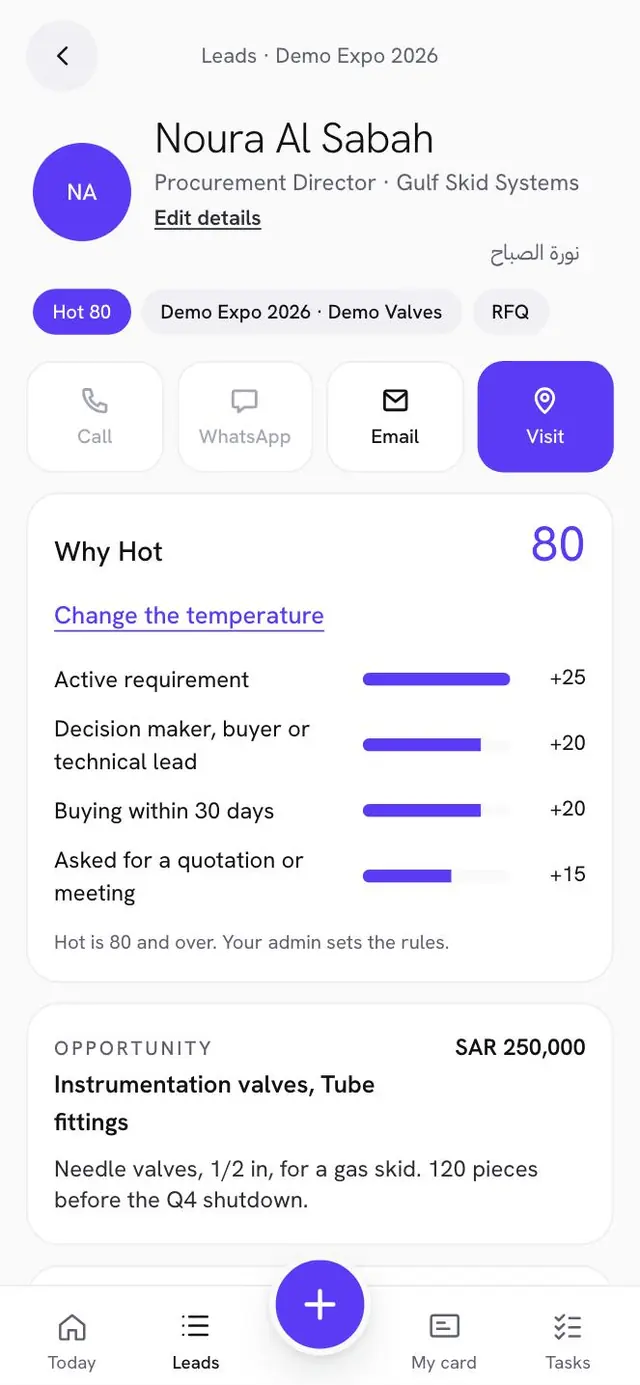
The top of the page
The name, job title and company come first. Below are tags: the temperature and score, the event and company, RFQ if a quotation was asked for, Target account with who looks after it, and Synced to CRM. If the lead is someone else’s, the owner’s name shows too.
The four buttons
| Button | What it does |
|---|---|
| Call | Rings them from your phone. Then use Log a call |
| Opens the follow-up on WhatsApp | |
| Opens the follow-up on email | |
| Visit | Starts a visit check-in for this lead. See Customer visits |
A button is grey if the lead has no phone or email for it. See Follow up by email or WhatsApp.
The next step
NEXT shows the next action and when it is due. Tap Done when you have done it. The history then says so.
To set one, tap Set next step. To move or change one, tap Change. Choose the kind of step and when it is due, then tap Save. It becomes a task with a reminder for the lead’s owner. Changing a step moves that task, so there is only ever one reminder for it.
You can also set the next step on the lead form, or when you end a visit. This needs a connection. For anything else, add a task.
Edit the details
Tap Edit details under the name to correct the name, job title, company, email or mobile. Keep an email or a phone, so there is a way to reach them. The change is noted in the history. This needs a signal.
Why it is Hot, Warm or Cold
Why Hot shows the score, and each reason with its points. Your admin sets the rules, and the line at the bottom says where Hot begins.
If you know something the form does not ask:
- Tap Change the temperature.
- Choose Hot, Warm or Cold.
- Under Why, say why. For example “budget frozen until next year”.
- Tap Set it.
The page then shows who set it and why. Later, Go back to what the score says undoes it. This needs a signal.
Opportunity
This shows what they asked about, the value, Interested in, your notes, and your company’s questions with their answers.
Photos and documents
Keep a photo of the requirement, a nameplate, a drawing or an RFQ with the lead.
- Tap Add under Photos and documents, and choose photos or PDF files. You can choose several.
- Tap a photo to see it. Tap a PDF to save it to your device.
- To remove one, tap its cross, then Remove. You can remove a file you added, or any file on your own lead.
A lead can hold 20 files. A PDF can be up to about 2.9 MB. Photos are made smaller for you. Adding a file needs a signal.
Card and voice notes
- Card shows the photo of the card, front and back. Tap to see it large.
- The card has more details appears if a card read later found more than you typed. Tap Add them. Nothing you typed changes.
- Voice notes lists each note with its written version. See Voice notes.
The CRM
If your company has a connected CRM, a line says where this lead stands.
| What you see | What it means |
|---|---|
| In the CRM, with a date | It has gone. Open takes you to the record |
| Waiting to go to the CRM | It will go soon |
| Waiting: the CRM connection is off | Your admin needs to turn it back on |
| Not sent to the CRM | It failed, with the reason. Tap Send again |
History
History lists everything in order: when you met, notes, calls, messages, handovers and next actions done. It also shows when they opened their page.
- Add a note after any conversation. Type it and tap Save.
- Log a call. Say what was said if you like, then tap Save.
Both work with no signal and appear once they have synced. With no signal, the page shows the copy on your phone without its history.
At the bottom of the page
| What you see | What it means |
|---|---|
| Follow-up basis | Why your company may contact this person |
| This person asked not to be contacted. | Nothing can be sent to them |
| Waiting for an owner | It came from a kiosk or imported list. If you can take it, tap It’s mine |
| Copy to another space | See A personal space |
| Owner and Assign | For managers. See Hand leads over |
| Delete lead | For sales managers and super admins only. A sales rep cannot delete a lead |
Still stuck?
Ask your company's admin, or write to hello@lucidarc.ae. Say which screen you were on and what you expected to happen.