
Follow up by email or WhatsApp
Send your details and the right catalogues by email or WhatsApp while they still remember your stand, and see when it was opened.
The first follow-up matters most. Aim to send it the same day.
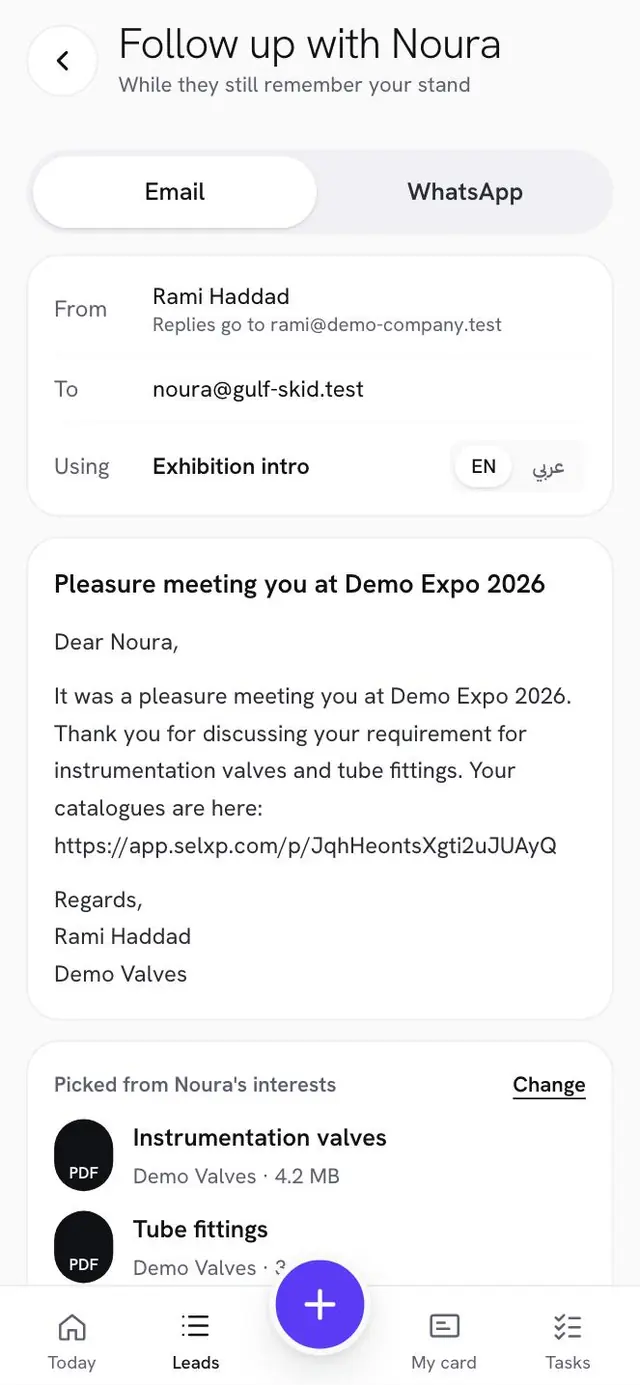
Send it
- Tap Save and follow up on the lead form, Follow up next to the lead on Today, or Email or WhatsApp on the lead.
- Choose Email or WhatsApp at the top.
- Choose EN or عربي for the message’s language.
- Check the catalogues. Tap Change to add or remove them.
- Tap Send email, or Open WhatsApp and send it from there.
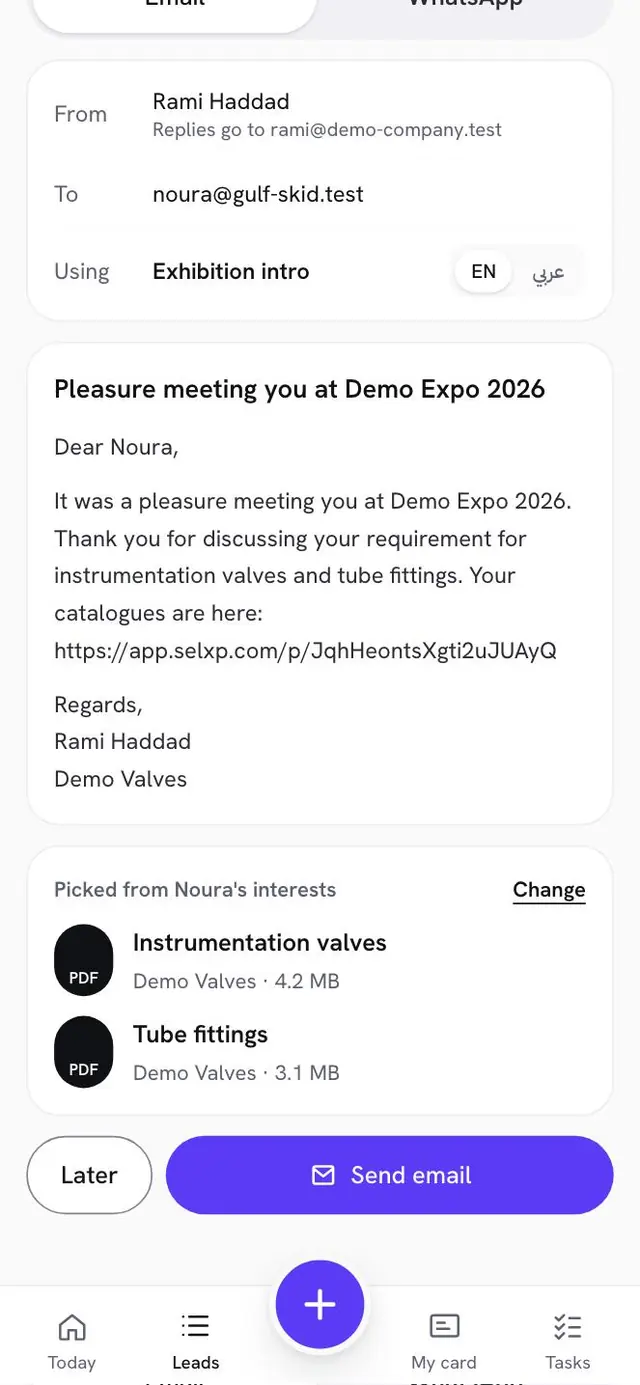
The lead then shows it was done, so your manager can see that too. Later leaves without sending.
What is on the screen
| Part | What it does |
|---|---|
| Task | The next step already set for this lead |
| From | Your name. Replies go to your own email address, shown here |
| To | Their email |
| Using | The kind of message: Exhibition intro or Meeting intro |
| The message | Your company’s wording, filled in for this lead. An event can have its own. You can change it unless your company has turned that off |
| Picked from their interests | The catalogues for what they asked about, and any for the event |
The wording
The message starts from your company’s wording. You can change it before you send:
- Write it with AI writes a message from your notes and voice notes. Read it before you send it.
- Write my own opens the message so you can change anything.
- Use the standard message goes back to your company’s wording.
Your company can turn this off, so that its wording goes out exactly as it is. You then do not see these buttons. If the wording needs changing, ask your admin. See Follow-up wording.
Catalogues
Catalogues are not attached. The message carries a link to the lead’s own page, with the catalogues you picked. With no catalogues picked, there is no link.
The page needs no app or sign-in. It thanks them for stopping by, and has the catalogues, a button to reply to you on WhatsApp, and a button to save your contact. A site visit or technical meeting you set as the next step shows as proposed. The page tells them that opening it is noted.
WhatsApp opens with the message ready for their mobile number. You send it from there. It is logged on the lead when WhatsApp opens, even if you then do not send it.
You can open the lead’s page from this screen to see what they will see. That does not count as them opening it.
After you send
The lead’s history shows what happened.
| History says | What it means |
|---|---|
| Email sent | It has gone |
| Email delivered | It reached their mailbox |
| Opened their catalogue page | They opened their page |
| Email bounced. Check the address. | Correct it under Edit details, then send again |
| Marked as spam by the recipient | Do not send again |
| WhatsApp opened | You opened it in WhatsApp |
If you cannot send
| What you see | What to do |
|---|---|
| This lead has no email address | Use WhatsApp, or add an email under Edit details |
| This lead has no mobile number | Use email |
| This person asked not to be contacted | Nothing can be sent |
| Following up needs a connection | The lead is saved. Come back when you have a signal |
In a personal space there is also a daily limit on emails, and sending pauses if too many bounce. Open in my mail app then sends it from your own email.
Reminders
If a lead has had no follow-up, you get a reminder, a day later unless your company has set another time. If a hot lead still waits after that, your manager is told. Follow up, or write a note saying why not.
When a lead is handed to you, the clock starts again from that moment.
Still stuck?
Ask your company's admin, or write to hello@lucidarc.ae. Say which screen you were on and what you expected to happen.