
Hand leads over
Give one lead or many to the right person, share a batch across a team, and undo it within two minutes if you change your mind.
A lead with the right owner gets followed up. One with the wrong owner waits. After each exhibition day, open Leads and move any lead that belongs with someone else.
You can hand leads to the people below you. Your admin can hand them to anyone in their companies or branches.
Find the leads
Open Leads. As a manager you see your people’s leads as well as your own, with the owner’s name on each one that is not yours.
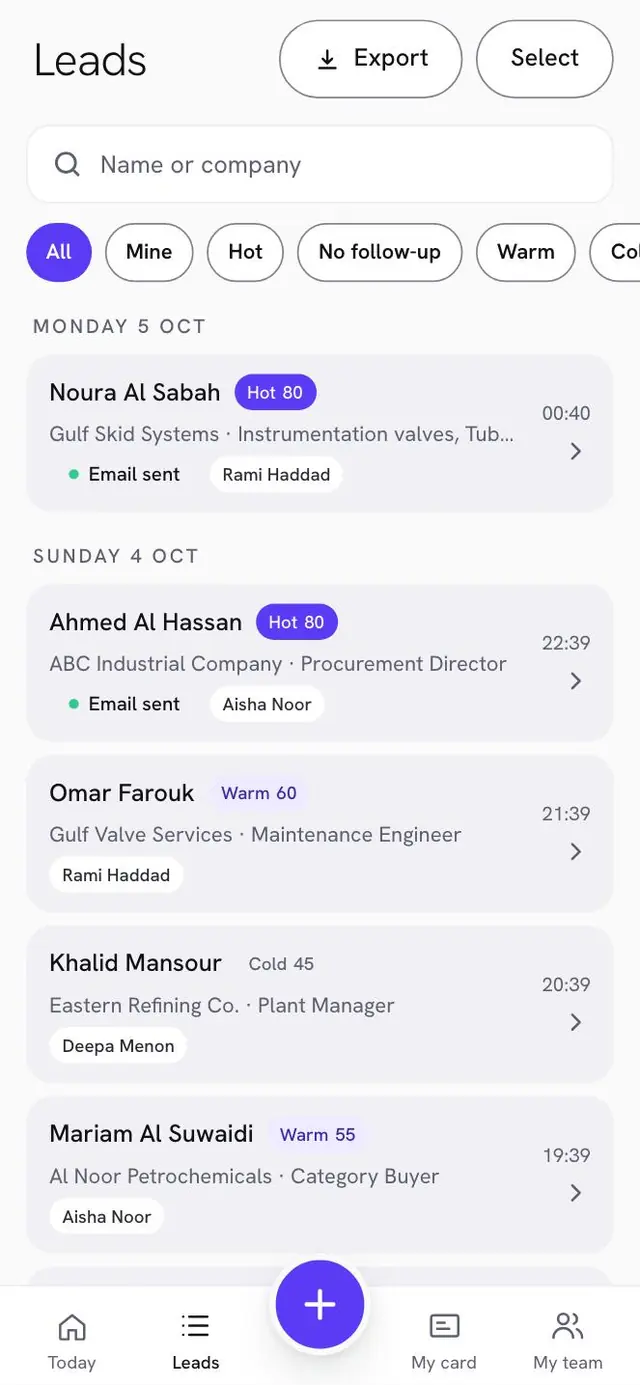
Use the search box for a name or company. The filters are All, Mine, Hot, No follow-up, Warm and Cold.
Hand over several leads
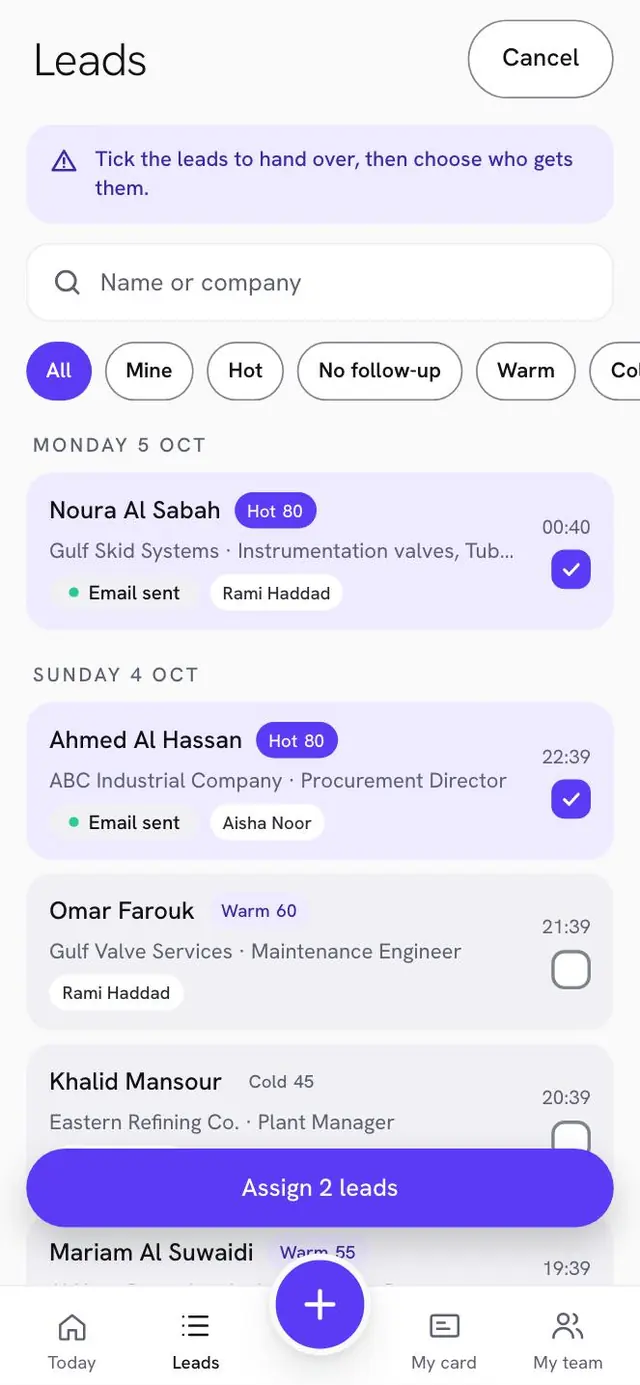
- Tap +, then Assign leads. Or open Leads and tap Select.
- Tick the leads. Cancel leaves without changing anything.
- Tap Assign 2 leads. The button counts what you ticked.
- Tap the person who gets them. Nothing asks you to confirm: the leads move on that tap.
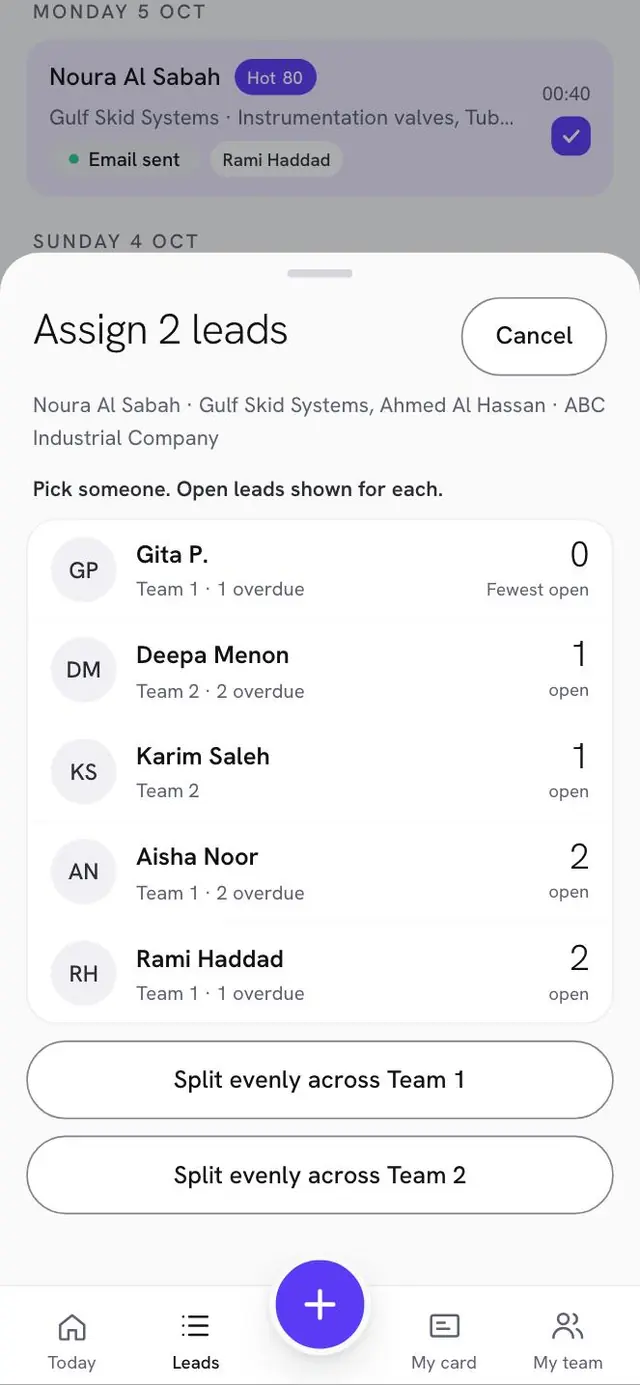
Choosing who
| On the sheet | What it tells you |
|---|---|
| The number on the right | How many open leads the person has. The list starts with the fewest. |
| Fewest open | Marks the person with the lightest load, when one person has fewer than everyone else. |
| Overdue under the name | How many of their tasks are late. |
| Split evenly across a team | Shares the leads out across that team, giving more to whoever has fewer. It shows only for two or more leads and a team of two or more. |
Hand over one lead
Open the lead. In the Owner box, tap Assign and pick someone.
Leads waiting on My team
Leads to assign and Waiting for an owner on My team each have an Assign button. It opens the same sheet for all the leads in that box.
What happens next
- The lead’s open tasks go with it to the new owner.
- The new owner gets one email for the whole batch, a couple of minutes later, and a notification if reminders are on. Today shows them New for you.
- Their follow-up reminders start again from now, so the old owner’s wait does not count against them.
- The handover is written in the lead’s history and recorded with your name.
- A lead already with that person stays as it is.
Undo
A green note says what was done, with Undo beside it. You have two minutes.
- The leads go back to where they were, with their tasks, and nobody is told.
- A lead someone else has moved since stays where it is.
- After two minutes the note says “It is too late to undo this”. Assign the leads again instead.
When someone leaves
When your admin switches someone off, their leads stay safe and wait under Leads to assign on My team until you hand them on.
Good to know
- You need a connection to assign leads.
- “There is nobody below you to give leads to yet” means no one is in your team. Ask your admin.
- The sheet lists the people below you, so it does not offer your own name.
Still stuck?
Ask your company's admin, or write to hello@lucidarc.ae. Say which screen you were on and what you expected to happen.