
Reports
Filter the numbers by event, company, team, person and days, and read every panel of the report, including the leads behind it.
Reports show the numbers for the leads you can see. On a computer, open Reports from the side menu. On a phone, tap Reports and export at the bottom of My team. It is easiest on a computer and needs a connection.
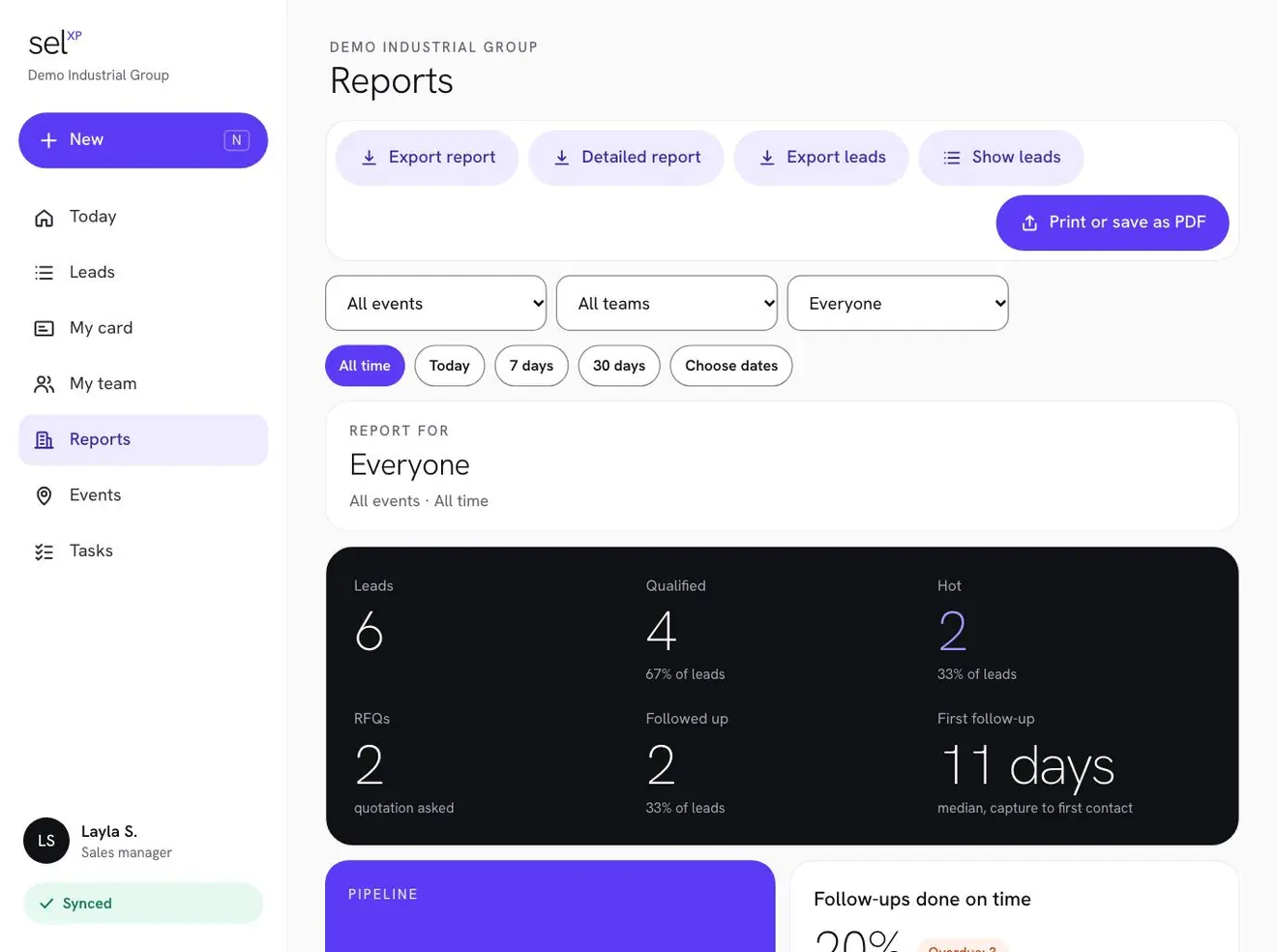
Filters
The filters work together. A filter shows only if you have more than one thing to choose from.
| Filter | Choices |
|---|---|
| Event | All events, or one event. |
| Company or branch | All companies, or one. A company includes its branches. |
| Team | All teams, or one. |
| Person | Everyone, or one of your people. |
| Days | All time, Today, 7 days, 30 days, or Choose dates with a From and To. |
Days are about when a lead was captured, in your workspace’s time zone. Both end dates are included.
Report for says in words whose report this is and what it covers, such as “Sara Ali, Demo Expo 2026, 7 days”. The same words appear on a printed copy.
Key numbers
| Number | What it means |
|---|---|
| Leads | How many were captured. With one event chosen, it also shows that event’s target. |
| Qualified | Hot and warm leads. |
| Hot | Hot leads, and their share of all leads. |
| RFQs | Leads where a quotation was asked. |
| Followed up | Leads whose latest call, email or message got through. An email that bounced does not count. |
| First follow-up | The median time from capture to first contact. Smaller is better. |
Panels
A panel shows only when it has something to say.
| Panel | What it shows |
|---|---|
| Pipeline | The total of the opportunity values, and how many leads have one. Each currency stays separate. With one event chosen, it shows how far along that event’s target you are. |
| Follow-ups done on time | The share of tasks on these leads, due so far, that were done by their due time, and how many are overdue. |
| Leads by day | Up to the last 14 days with leads. A single day shows Leads by hour instead. |
| Quality mix | How many are hot, warm and cold. |
| What they asked about | The products and services chosen on leads, most asked first. |
| Follow-up activity | Everything logged on these leads: calls, emails, WhatsApp, meetings and visits, notes, and how often someone opened their page. |
| Next steps | Planned, Past due and None set. Open leads with no next step need one. |
Breakdowns
| Table | When it shows | Columns |
|---|---|---|
| By event | When no event is chosen | Name, Leads, Hot, Warm, RFQs, Forecast, Followed up |
| By company | With more than one company | The same |
| By team | With more than one team | The same |
| How they were met | With more than one source, such as at an event, a referral or the stand kiosk | Leads, Hot, Followed up |
| People | When no person is chosen | The same as By event, plus On time |
Forecast adds up values in your workspace’s currency. Leads valued in another currency are left out, and a line under the table says how many. Tap a name under People to see that person’s leads.
Show leads
Tap Show leads to list the leads by name under the report. Tap it again to hide them.
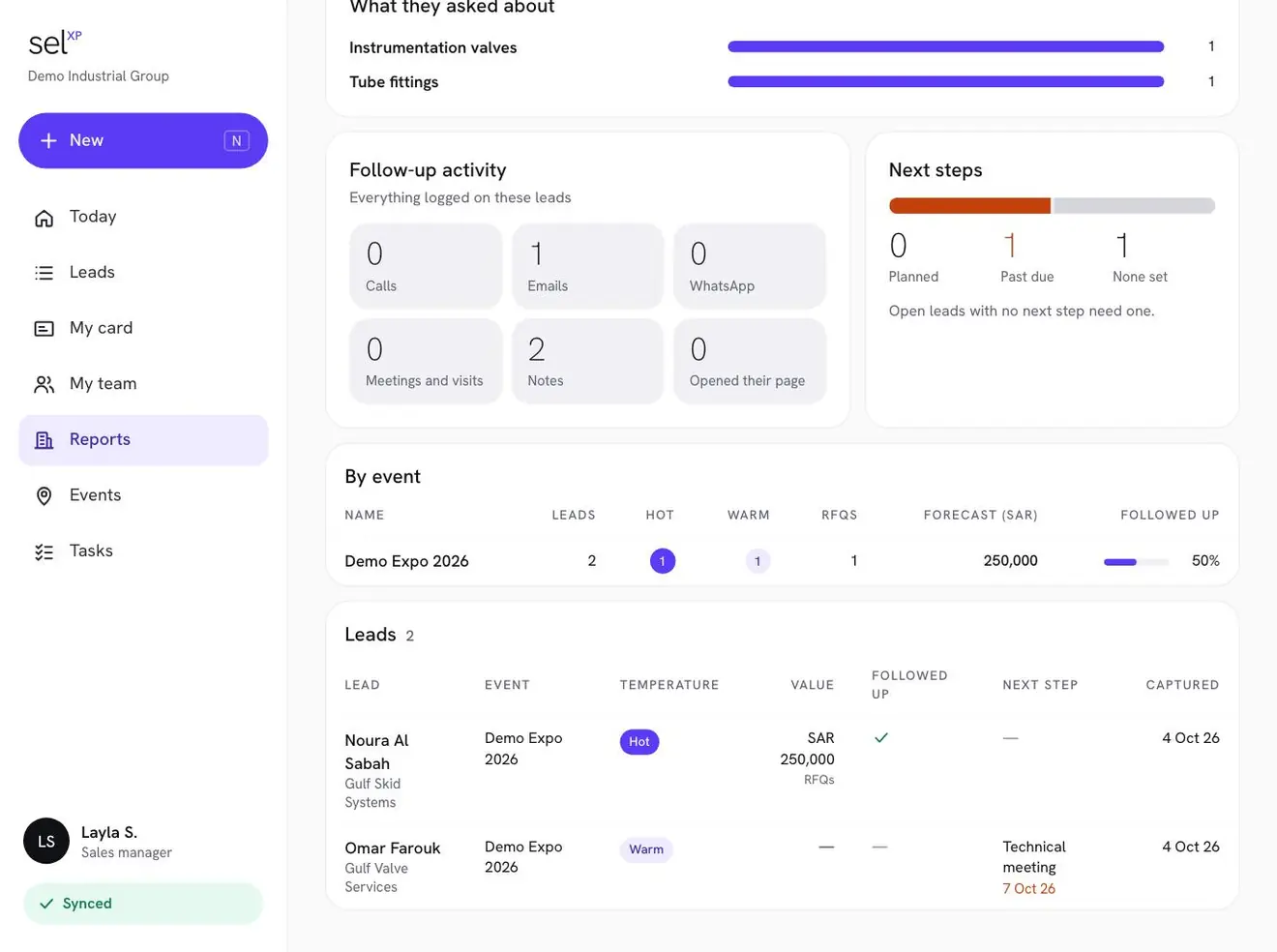
The columns are Lead, Event, Owner, Temperature, Value, Followed up, Next step and Captured. A past-due next step shows in red. Tap a lead to open it.
With one person chosen, the Owner column goes, since they are all theirs. The newest 300 leads are listed. For more, use Export leads.
Saving a report
What a rep sees
A rep gets My report, with their own leads only. They can use Show leads and print it or save it as a PDF, but the three report exports are not there.
If the numbers look wrong
| You see | What to do |
|---|---|
| “No leads match” | Try a longer period or fewer filters. |
| The numbers changed after a lead was deleted | Deleted leads leave every report. |
| Someone’s leads are missing | You see only the people below you. A company admin sees more. |
| A value is not in the Forecast | It is in another currency. Pipeline still shows it. |
Still stuck?
Ask your company's admin, or write to hello@lucidarc.ae. Say which screen you were on and what you expected to happen.